
Send adtribute data to BigQuery
How to integrate adtribute data into BigQuery.
Export your adtribute data to your own BigQuery project, for example to use it in your own BI tools. You set this up yourself: first in Google Cloud, then in Activation. adtribute then adds views of your data to a dataset in your project.
Step 1: Give adtribute access in Google Cloud
Section titled “Step 1: Give adtribute access in Google Cloud”-
Log in to the Google Cloud console and open your project.
-
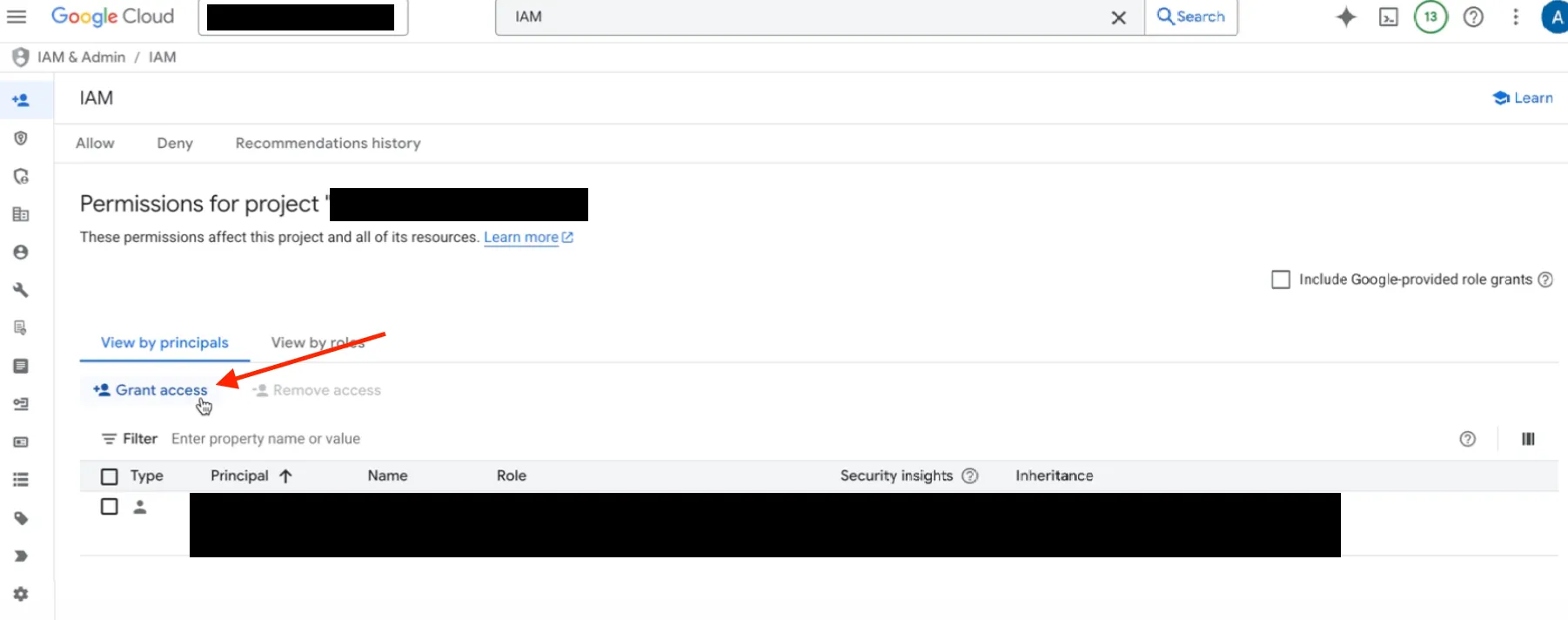
Go to IAM and click Grant access.
-
Add adtribute’s pipeline service account as a principal:
adtribute-pipeline@adtribute-374219.iam.gserviceaccount.com -
Assign the role BigQuery Data Editor and click Save.
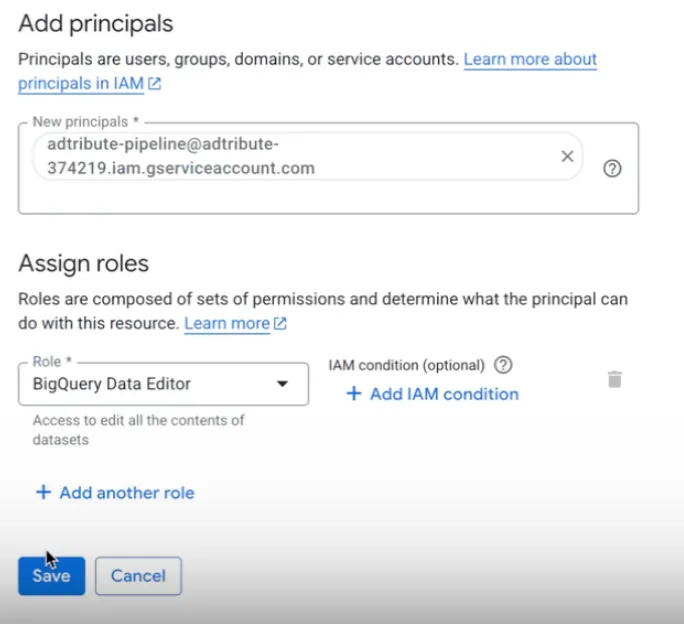
You can grant the role on the whole project or only on the dataset you create in step 2. adtribute shows the same service account, with a copy button, when you create the destination in step 3.
Step 2: Create a dataset
Section titled “Step 2: Create a dataset”-
Open BigQuery.
-
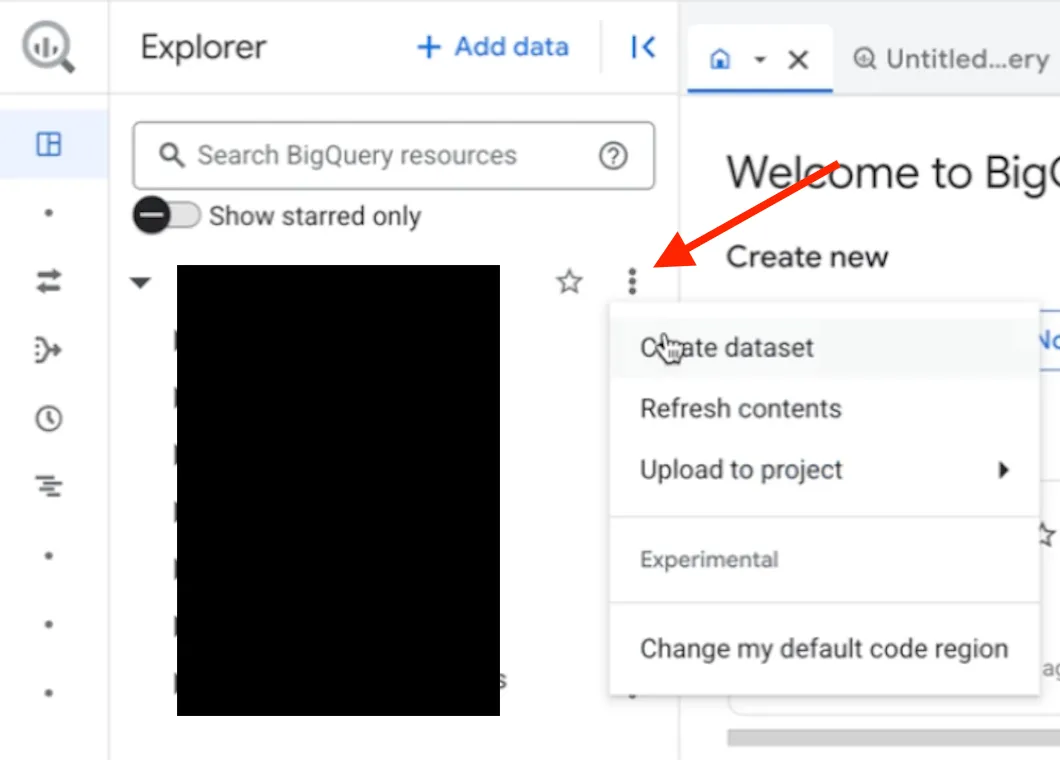
Click the three dots next to your project name and select Create dataset.
-
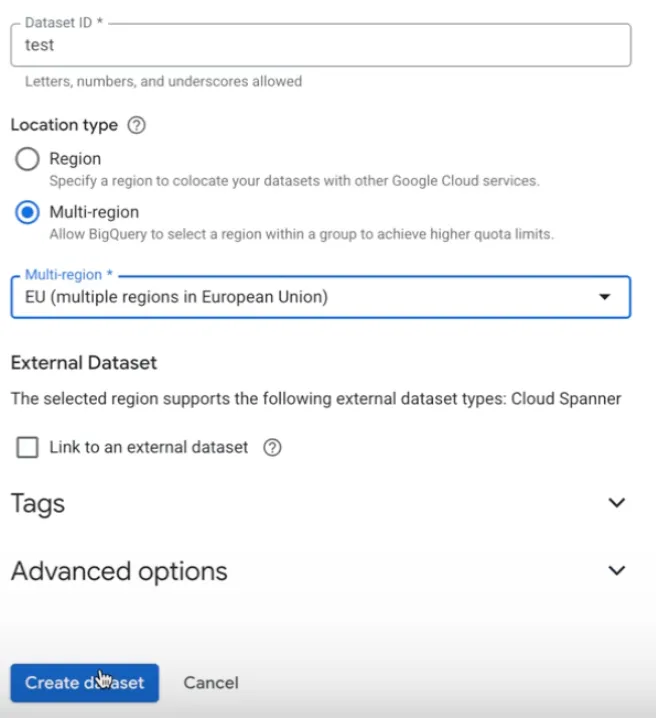
Give the dataset a clear name.
-
Under Location type, select Multi-region and then EU.
-
Do not set a default table expiration.
-
Click Create dataset.
-
Open Dataset info and copy the Dataset ID. It has the form
project.dataset.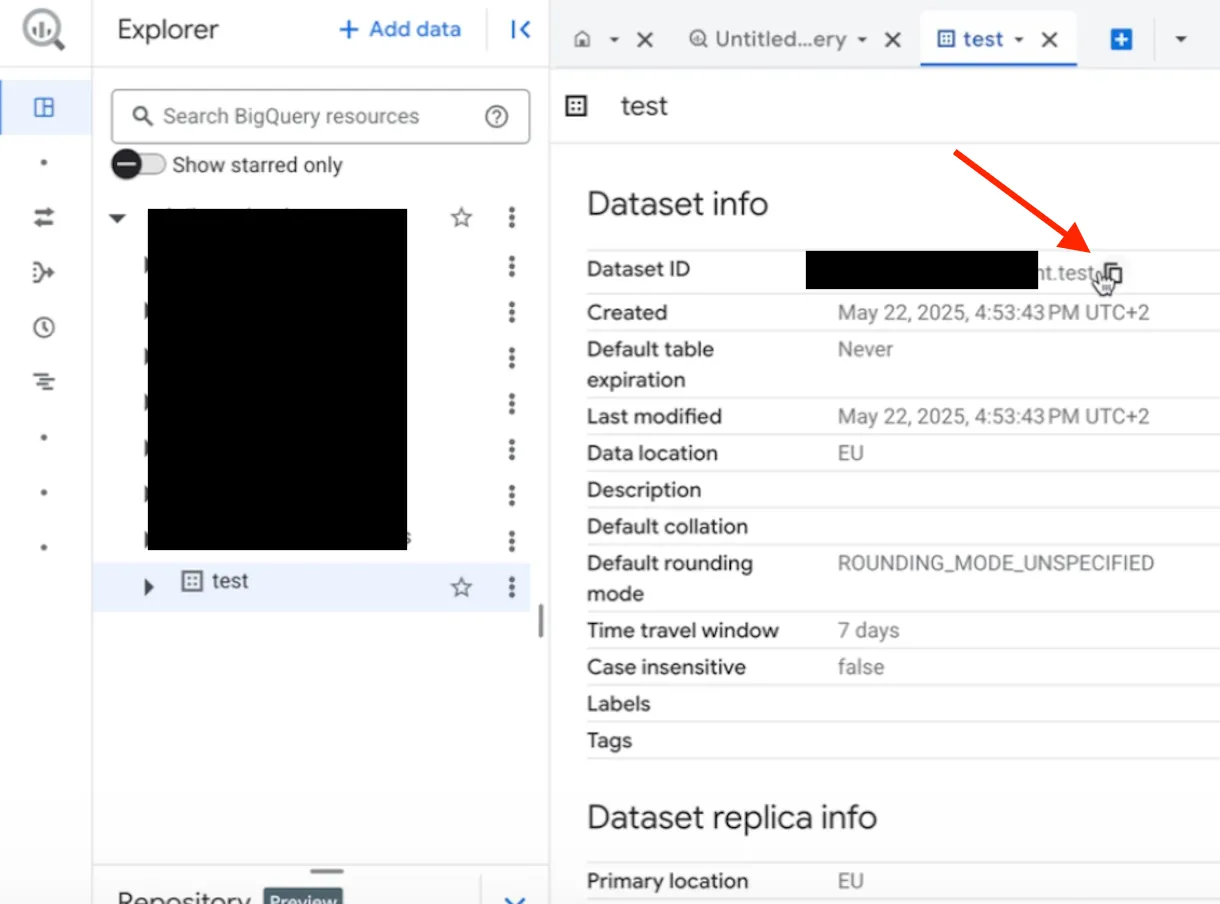
Step 3: Create the BigQuery destination
Section titled “Step 3: Create the BigQuery destination”- Go to Activation › Add Action › Create New Destination.
- Enter a Name and a Description. Both are required.
- Under Type, select BigQuery. A box asks you to use a dataset in the multi-region EU and to grant the role BigQuery Data Editor to the adtribute GCP Pipeline Service Account. It shows that account with a copy button.
- Enter the Project ID and the Dataset ID. Split the Dataset ID you copied in step 2 at the dot:
my-project.my_datasetbecomes Project IDmy-projectand Dataset IDmy_dataset. - Click Next.
adtribute now checks the dataset. It must exist, be in the EU multi-region, let adtribute create a view and have no table expiration. If a check fails, adtribute does not save the destination and shows an error.
Step 4: Add the action
Section titled “Step 4: Add the action”After Next, the Add Action form opens for your new destination.
- Enter a Name and a Description.
- Under Table Reference, select the data to export.
- Click Add Action.
| Table Reference | Description in the app | View in your dataset |
|---|---|---|
| Attribution Conversion | Full attribution data attributed by conversion | rep_attribution_conversion_<action ID> |
| Attribution Click | Full attribution data attributed by click | rep_attribution_click_<action ID> |
| Conversion Attribution (Conversion) | Conversion attribution data attributed by conversion | rep_conversion_attribution_conversion_<action ID> |
| Conversion Attribution (Click) | Conversion attribution data attributed by click | rep_conversion_attribution_click_<action ID> |
| Int Attribution | Aggregated attribution data | int_attribution_<action ID> |
| Rep Conversion Journey | Data about the conversion journey for each conversion | rep_conversion_journey_<action ID> |
| Int Conversion | Aggregated conversion data | int_conversion_<action ID> |
| Int Touchpoint | Aggregated touchpoint data | int_touchpoint_<action ID> |
| Int Channel | Aggregated channel data | int_channel_<action ID> |
| Base Event | Base event data | One view per event: base_event_<event key>_<action ID> |
| Lookup Attribute Source | Lookup Attribute source data | One view per lookup attribute: source_attribute_<attribute ID>_<action ID> |
<action ID> is the ID adtribute gives the action. You find it at the end of the action’s Table Name (see below).
An action exports one table reference. To export more, add one action per table reference: go to Activation › Add Action and select your BigQuery destination instead of Create New Destination.
What you find in your dataset
Section titled “What you find in your dataset”Once you add the action, adtribute creates its view in your dataset. A view holds no copy of the data: each query reads the current data from adtribute.
To get the view’s full name, open the action in Activation. Table Name shows it as <project ID>.<dataset ID>.<view>, with a copy button.
For Base Event and Lookup Attribute Source, the view names also contain the event key or the attribute ID, so they differ from the Table Name. In your dataset, look for views that start with base_event_ or source_attribute_ and end with the same action ID.
What you cannot change after saving
Section titled “What you cannot change after saving”You cannot edit a saved BigQuery destination or action. All fields are locked, including Name and Description, and Save Destination and Save Changes stay disabled.
- For other data, add a new action to the same destination.
- For another dataset or project, create a new destination.
- To stop an export, open the action, click the three-dot menu at the top of the sidebar and select Delete. Confirm with Delete. adtribute removes the action’s views from your dataset.