
Outbrain Ads
How to connect Outbrain to adtribute.
Create Connection in adtribute
Section titled “Create Connection in adtribute”- Open the adtribute App.
- Go to Sources › Connections and click on “Create Connection”.
- Search for “Outbrain Ads” and select it.
- Name the Connection as you like, e.g. the Account Name.
Before going through Connection Process you have to confirm that you have implemented the UTM Parameters that are shown.
Implement UTM Parameter
Section titled “Implement UTM Parameter”adb_ad_source=outbrain&adb_ad_id={{ad_id}}&adb_campaign_id={{campaign_id}}&adb_click_id={{ob_click_id}}&adb_adgroup_id={{doc_id}}&adb_target_id={{section_id}}For Outbrain Ads the UTM Parameter need to be implemented on Campaign Level:
-
Login to your Ad Account
-
Navigate to a campaign
-
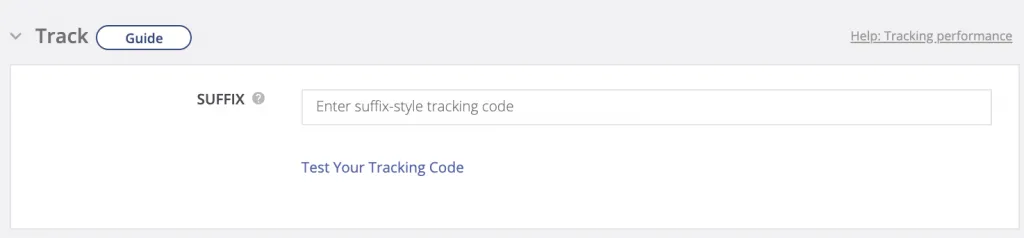
Go to the “Track” section
-
Implement the copied “UTM Parameter” into the “SUFFIX” field:
Important:
- You have to repeat this for each and every campaign (active and newly created)
- do not add a ”?” at the beginning - Outbrain does that automatically
Outbrain Ads Connection Flow
Section titled “Outbrain Ads Connection Flow”To start the connection flow simply click “Connect”:
-
Login to your Outbrain account.
- If you receive an error message, you do not have the required API Access. In order to get that, you need to contact the Support or your Account Manager at Outbrain and ask to get it enabled.
-
Keep the “Historical Sync Time Frame” as it is - adtribute presets it to all time.
-
Lastly, click “Save & Test”.
It will validate for a short while and tell you if the Connection was successful.
Complete Connection
Section titled “Complete Connection”After the successful Connection Flow it will redirect you back to the adtribute app and you can find the Outbrain Ads Connection within all of your Connections.