
Custom Event Tracking with Sheets
How to integrate server-side events that are not part of the standard connections, e.g. Spryker orders, pipedrive leads, PPS data, etc.
Loom Explainer
Section titled “Loom Explainer” Private Video
Setup Custom Events Sheet
Section titled “Setup Custom Events Sheet”- Open the adtribute App.
- Go to Sources › Connections and click on “Create Connection”.
- Search for “Custom Event” and select it.
- Name the Connection as the event name, e.g. Spryker Orders.
- Define the “Event Source” and “Event Object”, e.g. Spryker & Order
- Click “Next” and then “Connect”.
After “Next”, adtribute creates a new sheet for the event and shows its “Sheet URL” and “Sheet Name”. You fill in your event data there.
You can fill the sheet in two ways:
- manually or with an export and update the data regularly (daily, weekly, monthly).
- automatically, with a tool like Zapier or make.
Manually fill out the sheet
Section titled “Manually fill out the sheet”Example Screenshot
This example shows 10 order events with their IDs, timestamps and emails. It comes from an older version of the sheet: today column E holds the Visitor ID (event_adb_cdt), and adtribute does not import extra columns like order_revenue.
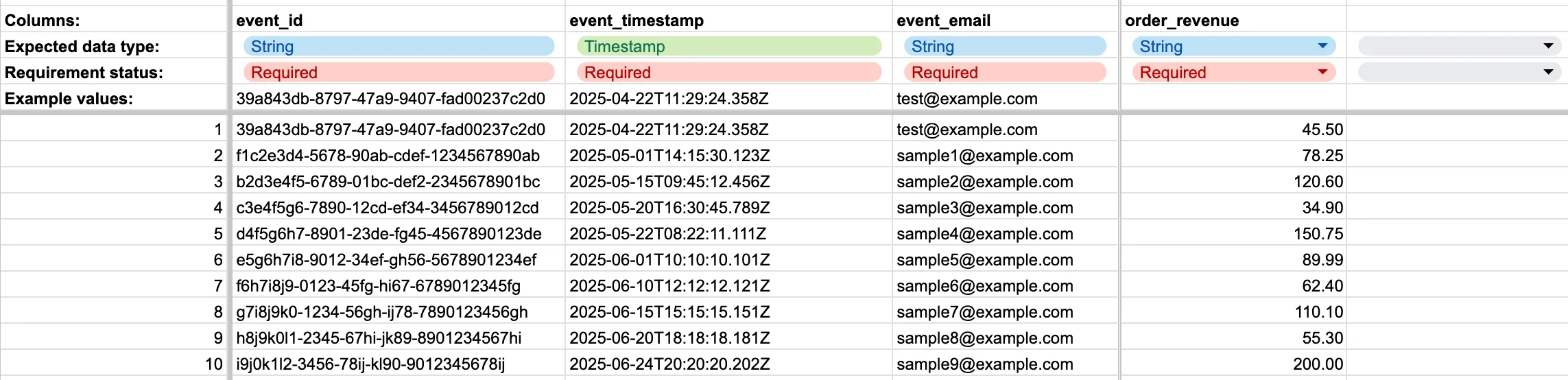
Fill in one row per event, starting in row 8. You can do so manually, optionally supported by an export. adtribute reads these columns:
Event ID (required)
event_idin column B
The ID that the event holds in the system you are integrating. Each event needs its own ID: if several rows have the same ID, adtribute keeps only the one with the latest timestamp.
Event Timestamp (required)
event_timestampin column C
The date and time when the event occurred, e.g. 2025-04-22 11:29:24 or 2025-04-22T11:29:24Z. A time without a timezone counts as UTC. To enter a local time, add its offset, e.g. 2025-04-22 13:29:24+02:00.
Event Email (required)
event_emailin column D
The email address that belongs to the event. adtribute uses it to link the event to the person’s customer journey.
Visitor ID (optional)
event_adb_cdtin column E
The ID that the adtribute tracking script gave the person’s browser, e.g. adb_cscid:dcc50bcc-2bbc-44b1-8e29-e0b42a306d0a. Together with the email, adtribute uses it to link the event to the person’s visits to your website. adtribute can only use IDs that start with adb_cscid:, adb_lsid: or adb_pvid:. Leave the cell empty if you don’t have the ID.
Other columns
adtribute reads only columns B to E and ignores all other columns, so data in an extra column like order_revenue does not reach adtribute. Do not insert columns between B and E: adtribute reads the columns by their position, not by their name.
How adtribute reads the sheet
Section titled “How adtribute reads the sheet”adtribute reads the sheet right after you click “Connect”, and then about every 15 minutes. Each time, it compares the sheet with its last read:
- New and changed rows are imported.
- If you delete a row, adtribute marks its event as deleted.
adtribute skips a row without an error message if its Event ID, Event Timestamp or Event Email is empty, or if it cannot read the timestamp. Do not use semicolons (;) or line breaks in the cells: adtribute cannot read such rows correctly.
Automatically fill out the sheet
Section titled “Automatically fill out the sheet”You can use any automation tool like Zapier or make to automatically push data into the sheet. Let it write one row per event, starting in row 8, and only into columns B to E. Rows 1 to 7 hold the header of the sheet, with protected cells: if your automation writes into them, you will run into errors.
If you have problems with the protected ranges throwing errors in your automation tool, you can use an input sheet as a workaround. This video explains it for Channel sheets, the process is the same for Events sheets:
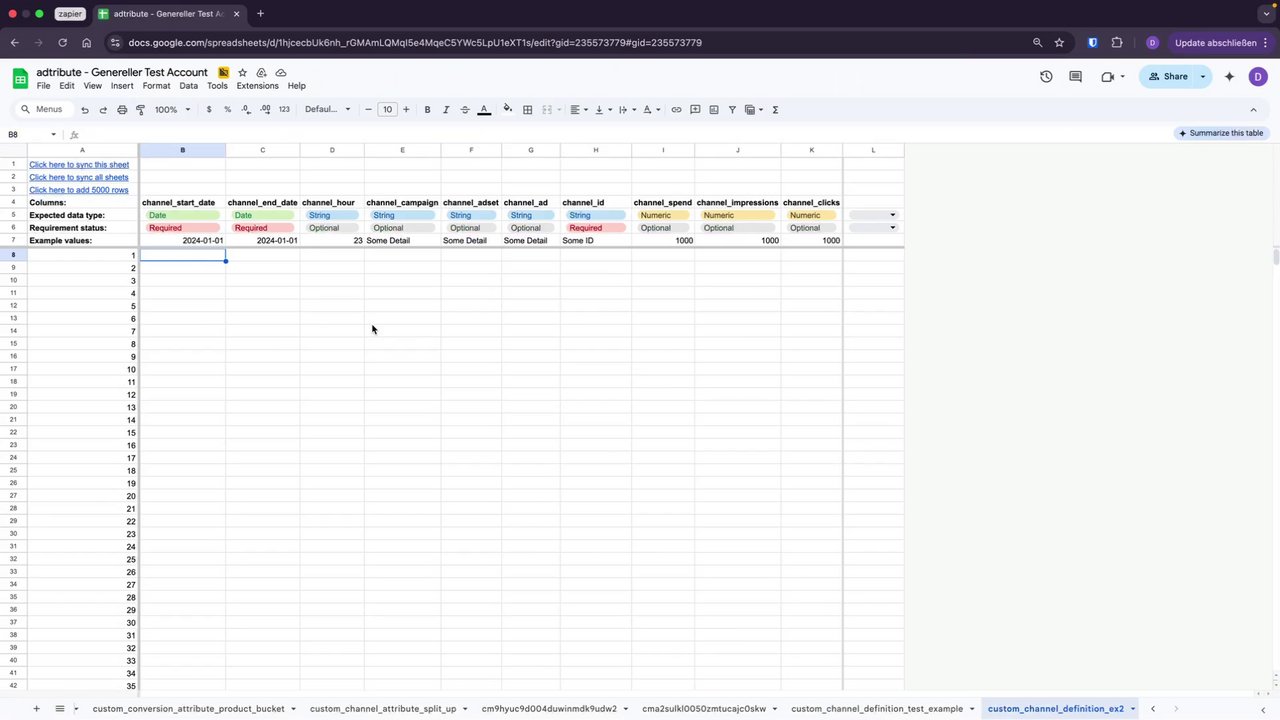 Input Sheet for automatic Fillout
- Create a new sheet and name it “input_event”
- Copy and paste your custom events sheet into the new sheet.
- Set up your automation to write into the input sheet.
- Connect the two sheets with the QUERY formula: enter e.g.
=QUERY(input_event!B8:E)in cell B8 of your custom events sheet to push the input sheet data into it.