
ablefy (Elopage)
How to connect ablefy (Elopage) to adtribute.
Create Connection in adtribute
Section titled “Create Connection in adtribute”- Open the adtribute App.
- Go to Sources › Connections and click on “Create Connection”.
- Search for “ablefy” and select it.
- Name the Connection as you like, e.g. the Account Name.
Now you need to get the API Key & Secret from ablefy and implement our Tracking Code.
Retrieve API Key & Secret from ablefy
Section titled “Retrieve API Key & Secret from ablefy”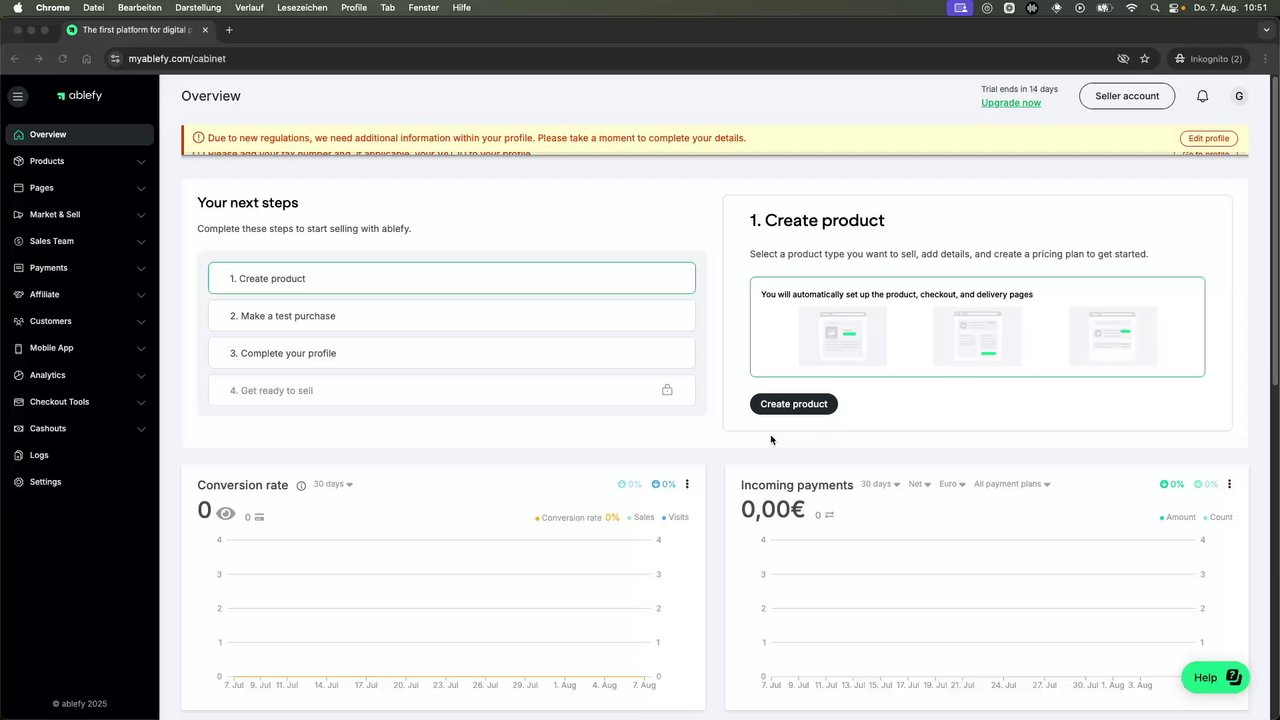 How to Generate Your Ablefy API Key and Secret 🔑
- Login to ablefy.
- Navigate to “Settings” > “Integrations”.
- Go to “ablefy API”.
- Click “Generate API”.
- Copy and paste the respective Key and Secret into the adtribute App and click “Next”.
Implement adtribute Tracking Code to ablefy
Section titled “Implement adtribute Tracking Code to ablefy”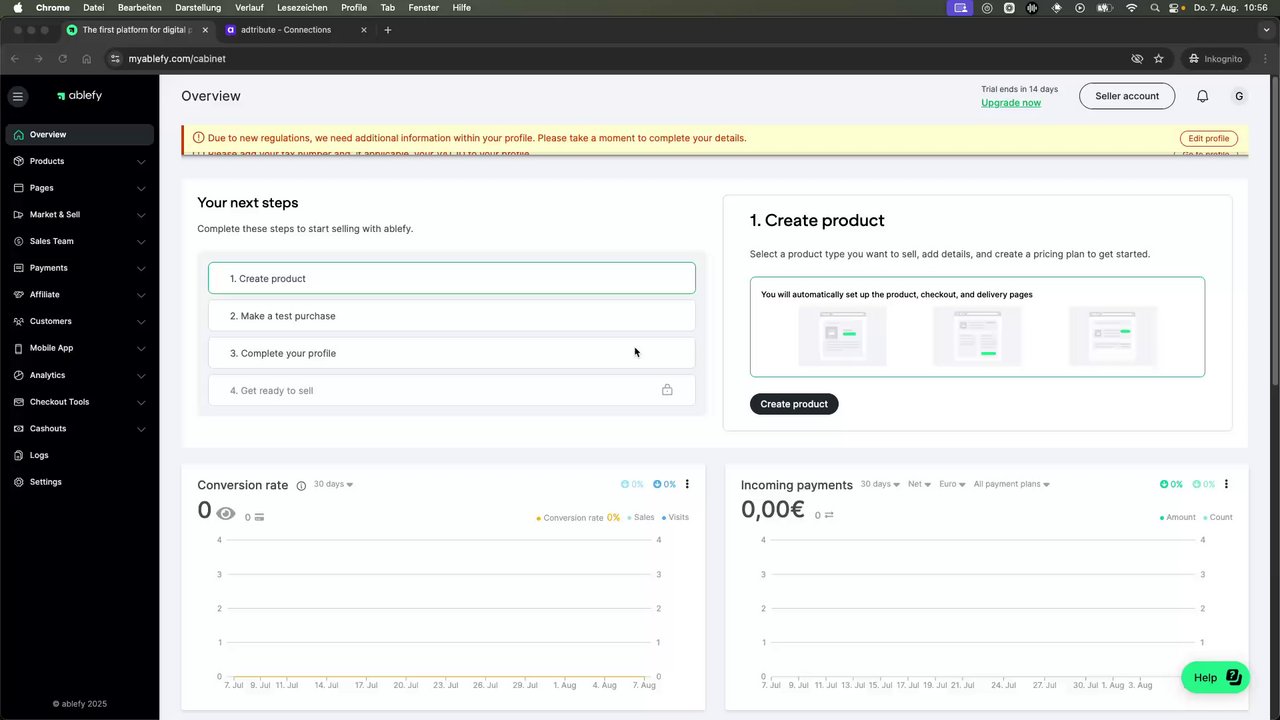 Manual Configuration for Ablefy Connection Setup 🔧
Update adtribute Webhook
Section titled “Update adtribute Webhook”- Click “Connect” in the adtribute App. This creates the adtribute Webhook in ablefy.
- In ablefy, navigate to “Market & Sell” > “Webhook”.
- Click on the already created adtribute Webhook.
- Check the box “Repeat until successful response from the webhook endpoint”.
- Scroll down and click “Save”.
Tracking Code Setup
Section titled “Tracking Code Setup”-
Copy the Tracking Code from the adtribute app.
-
Navigate to “Tracking Codes” under “Market & Sell”.
-
Click “Add Tracking Code”
-
Configure the Code:
- Type: Custom
- Name: Adtribute Tracking Code
- Paste the Code in the respective field
- Check the “Active” box
-
Click “Save”.
Check Webhook & Tracking for Products
Section titled “Check Webhook & Tracking for Products”-
Navigate to the product settings under “Edit” > “Advanced”.
-
Check if for the “Tracking codes” and “Webhook endpoints” either all are active or at least the ones from adtribute.
- If not, change it and save.
Complete Connection
Section titled “Complete Connection”After you have completed all of the steps above, you can click on “Connect”. It will load for a short bit and tell you on the bottom right if the Connection was successful and show up within your Connections.