
Klaviyo Event Upload
Send adtribute tracked events to Klaviyo to power flows with more accurate data and increase performance.
Klaviyo Event Upload allows you to send tracked events from adtribute - such as Shopify product views, add to cart, or checkout started - to Klaviyo. Each uploaded event is assigned to a custom metric in Klaviyo. You can then use this metric to trigger flows, segment users, and personalize messaging.
This helps you:
- Identify high-intent users more accurately than Klaviyo
- Trigger targeted abandonment and retargeting flows to more users
- Increase revenue through better audience activation
Loom Tutorial
Section titled “Loom Tutorial”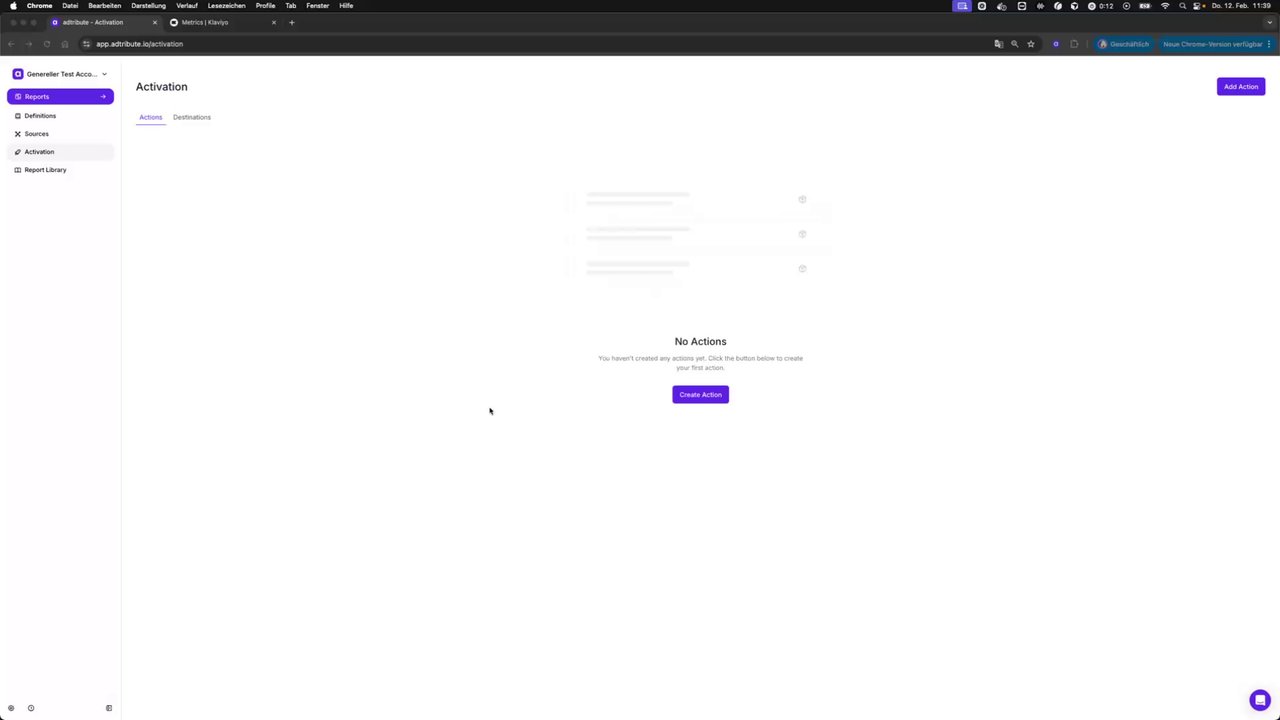 Setting Up Klaviyo Event Upload in the User Interface 🚀
First, create a Klaviyo destination in adtribute.
-
Go to Activation.
-
Click “Add Action”, then “Create New Destination”.
-
Select Klaviyo as the destination type.
-
Enter:
- Name
- Description
-
Add your Klaviyo API key with the following minimum permissions:
events: writeprofiles: read
-
Click “Next” to save the destination.
Once the destination is created, you can define your event upload action:
-
The action form opens right after you click “Next”. For an existing Klaviyo destination, click “Add Action” and select the destination.
-
Enter:
- Name
- Description
-
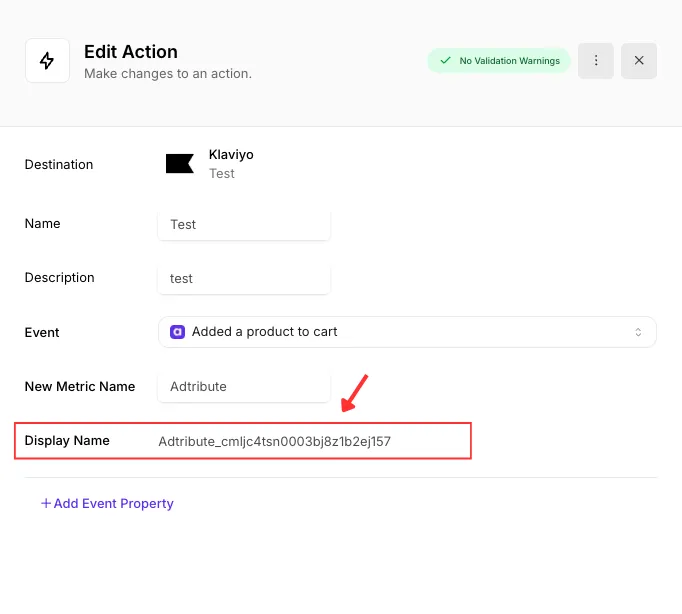
Under “Event”, select the relevant event definition (e.g. “Added a product to cart”)
-
Under “New Metric Name”, define the name of the metric that will be created in Klaviyo.
-
(Optional) Click “Add Event Property” to attach additional metadata.
-
Click “Add Action” to save and activate the action.
From this point on, qualifying events will be uploaded to Klaviyo and associated with the defined metric. If you have multiple Klaviyo actions and are unsure which metric belongs to which action, please refer to the display name in the details of the created action.
Example Use Case
Section titled “Example Use Case”One example usage would be to create a checkout abandonment flow. Use the event definition “Started a checkout” to:
- Upload checkout-start events to Klaviyo.
- They are assigned to a new metric in Klaviyo.
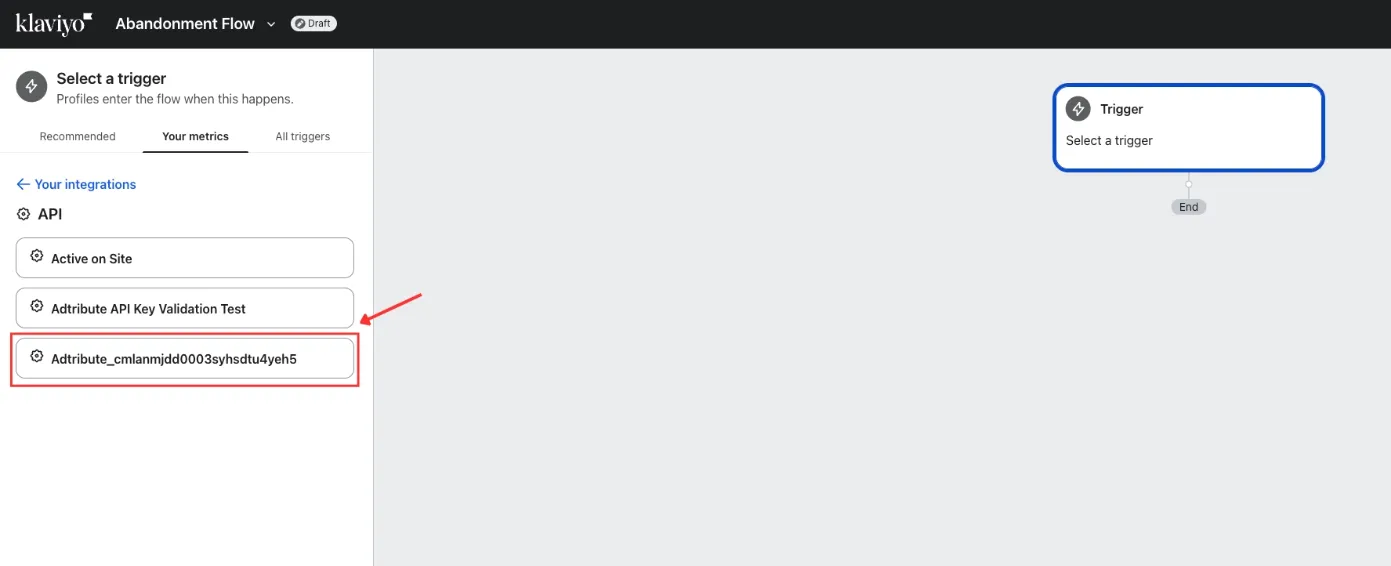
- Use that metric as a trigger in a Klaviyo flow.
- Send reminders to users who started checkout but did not purchase.
Here is an example of how you can select the trigger under “Your metrics” in a Klaviyo flow:
Additional Notes
Section titled “Additional Notes”- Upload frequency → Events are uploaded every 30 minutes, so Klaviyo flow delays need to be adjusted accordingly.
- Events are only uploaded for existing Klaviyo profiles. If a profile does not exist in Klaviyo, the corresponding event will not be sent.