
Shopify
How to connect and integrate your Shopify Store.
To connect your Shopify stores, follow these steps for each store.
Create New Shopify Connection
Section titled “Create New Shopify Connection”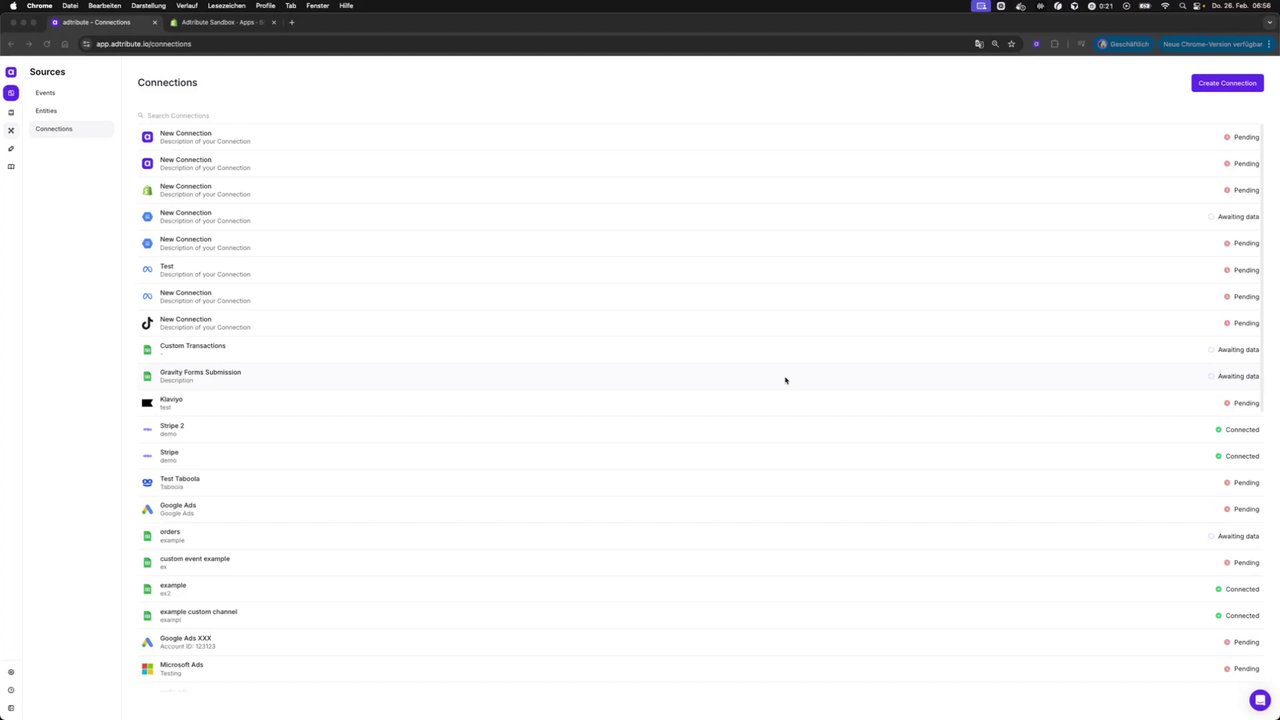 Connecting Your Shopify Store to adtribute
- Go to the adtribute app.
- Navigate to Sources › Connections.
- Click on “Create Connection” in the top right corner.
- Search for the Shopify connection and select it.
- Fill in your subdomain (everything before .myshopify.com). For example, if your store URL is “adtribute-sandbox.myshopify.com”, enter “adtribute-sandbox”.
- Click on “Next”.
- Click on “Connect with Shopify” and you will be redirected to the Shopify install screen (make sure you are currently logged in within your Shopify store for this step to work)
- Confirm the installation by clicking on “Install” and you will be redirected back to the adtribute app.
Set Up Pixel Tracking Code in Shopify
Section titled “Set Up Pixel Tracking Code in Shopify”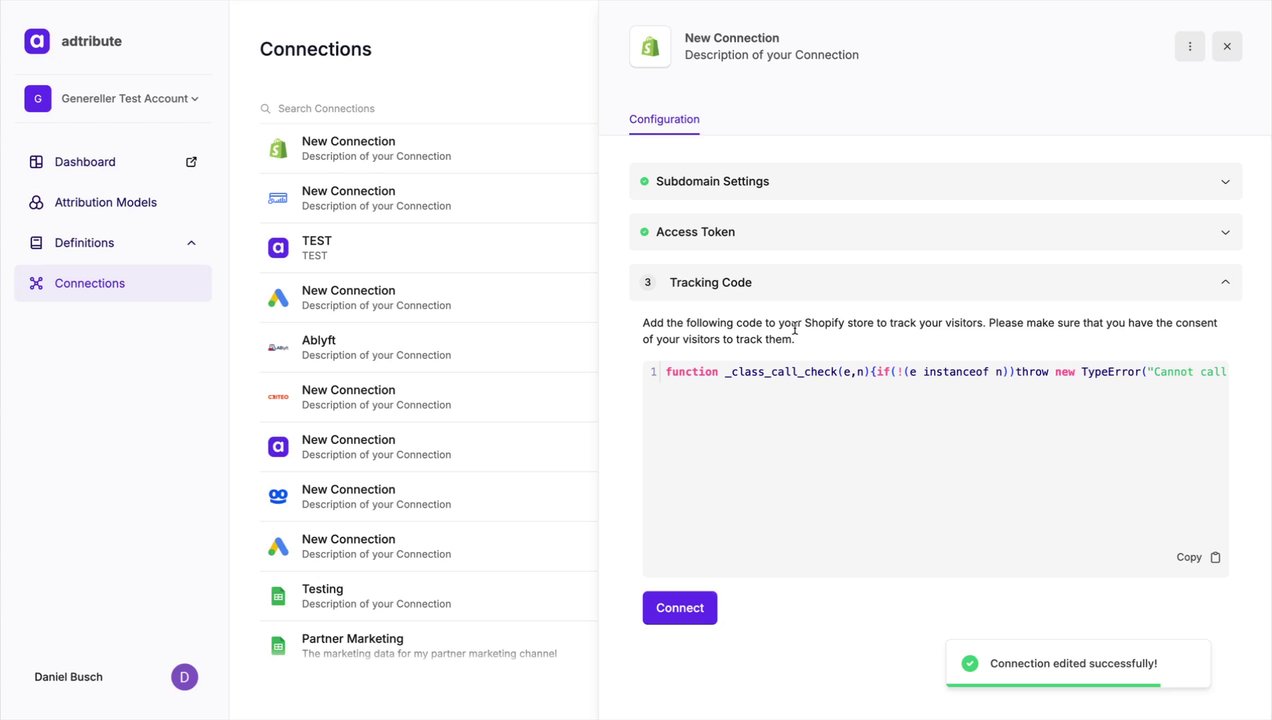 Connect Shopify to Adtribute
-
Copy the pixel tracking code provided by adtribute.
-
Go back to the Shopify and navigate to Customer Events on the left.
-
Click on Add Custom Pixel and name the pixel “adtribute”.
-
Delete any existing code in the code field and paste the copied pixel tracking code.
-
Click on Save at the top.
-
Configure Data Collection Settings
- Select Data collected does not qualify as data sale, as we do not sell data.
- For permissions, choose Required to track only consented user data (recommended). Alternatively, you can select Not Required, to track all data (that’s your decision).
-
Click on Save at the top again to ensure your settings are applied.
-
Click on “Connect” in the top right corner.
-
Check if it says “connected” for the pixel within Shopify Customer Events.
-
Return to the adtribute app and click on “Connect”.
-
Wait for the connection to load (takes a minute). Once completed, the panel closes and you will see a confirmation message stating “Connection edited successfully!”.
-
Name Your Connection. To keep track of your connections, name it after the store you have connected (e.g. adtribute-sandbox): click on the connection in the list and type the name into the name field at the top of the panel.
-
Press Enter to save the name.
Additional Stores
Section titled “Additional Stores”If you wish to connect additional Shopify stores, simply repeat the steps outlined above for each store.