
Meta Ads Conversion Upload (CAPI)
How to send adtribute data back to Meta to optimize your campaigns.
Follow the instructions in this article to send one or multiple adtribute tracked events back to Meta to optimize your campaigns with better data.
Step 1: Shopify Pixel Setup Modification
Section titled “Step 1: Shopify Pixel Setup Modification”When you are running on Shopify, you have to complete one more step before creating the CAPI Setup. Follow the instruction below.
There are two ways of integrating this depending on whether the Meta and adtribute pixel have the same consent settings.
- Same consent settings
- Different consent settings
This can be relevant because adtribute usually only needs analytics consent while Meta requires consent for marketing, data sale and personalization. If you are unsure about this in your specific case, feel free to contact us!
1. Pixel Setup in Shopify (Same consent settings)
Section titled “1. Pixel Setup in Shopify (Same consent settings)”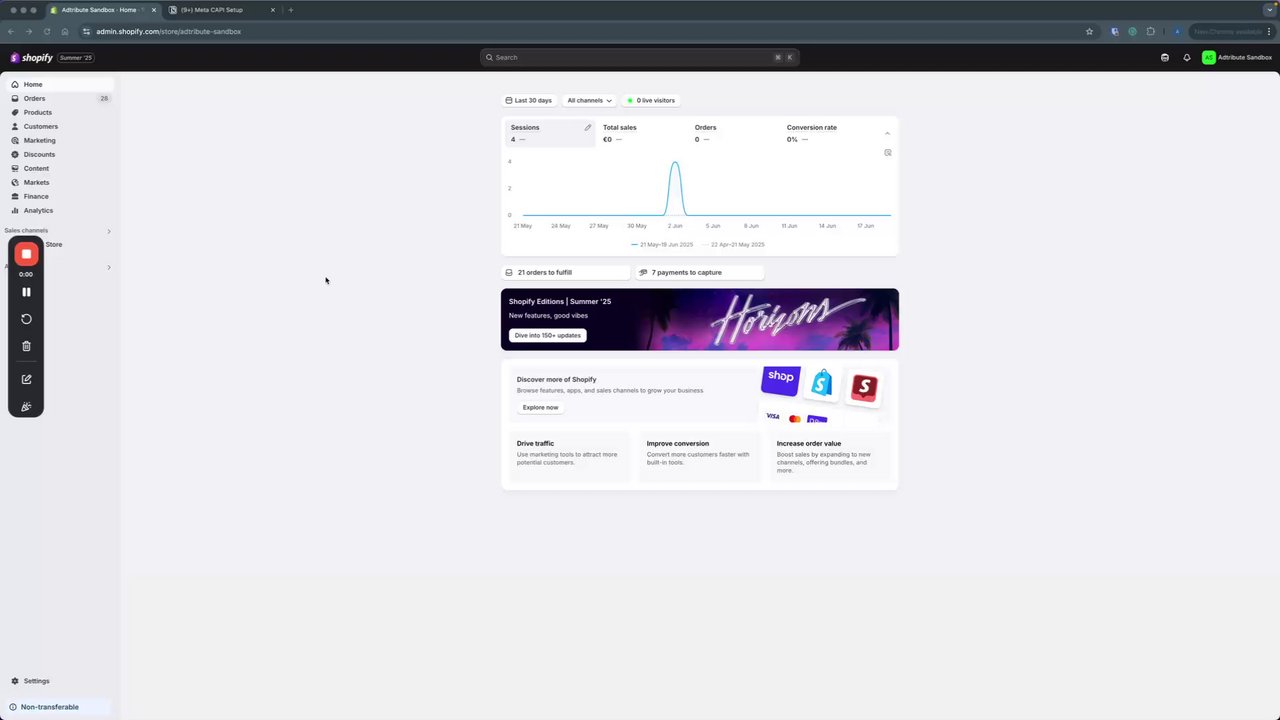 Setting Up the Meta Conversion API with Attribute in Your Shopify Store
-
Log into your Shopify Account
-
Navigate to “Settings” > “Customer Events”
-
Click on the already installed adtribute pixel
-
Move the existing pixel code down and add the following at the top:
!function(f,b,e,v,n,t,s){if(f.fbq)return;n=f.fbq=function(){n.callMethod?n.callMethod.apply(n,arguments):n.queue.push(arguments)};if(!f._fbq)f._fbq=n;n.push=n;n.loaded=!0;n.version='2.0';n.queue=[];t=b.createElement(e);t.async=!0;t.src=v;s=b.getElementsByTagName(e)[0];s.parentNode.insertBefore(t,s)}(window, document,'script','https://connect.facebook.net/en_US/fbevents.js');fbq('init', 'INSERT YOUR PIXEL ID HERE'); -
Replace the placeholder INSERT YOUR PIXEL ID HERE and insert your Meta pixel id. You can find your pixel in the “Events Manager” within your Ad Account / Business Manager.
-
If you have multiple pixels in one store, then you need to duplicate the last line for every pixel:
fbq('init', 'INSERT YOUR 1st PIXEL ID HERE');fbq('init', 'INSERT YOUR 2nd PIXEL ID HERE');fbq('init', 'INSERT YOUR 3rd PIXEL ID HERE');
-
-
Click “Save” to update the pixel (top middle).
2. Pixel Setup in Shopify (Different consent settings)
Section titled “2. Pixel Setup in Shopify (Different consent settings)”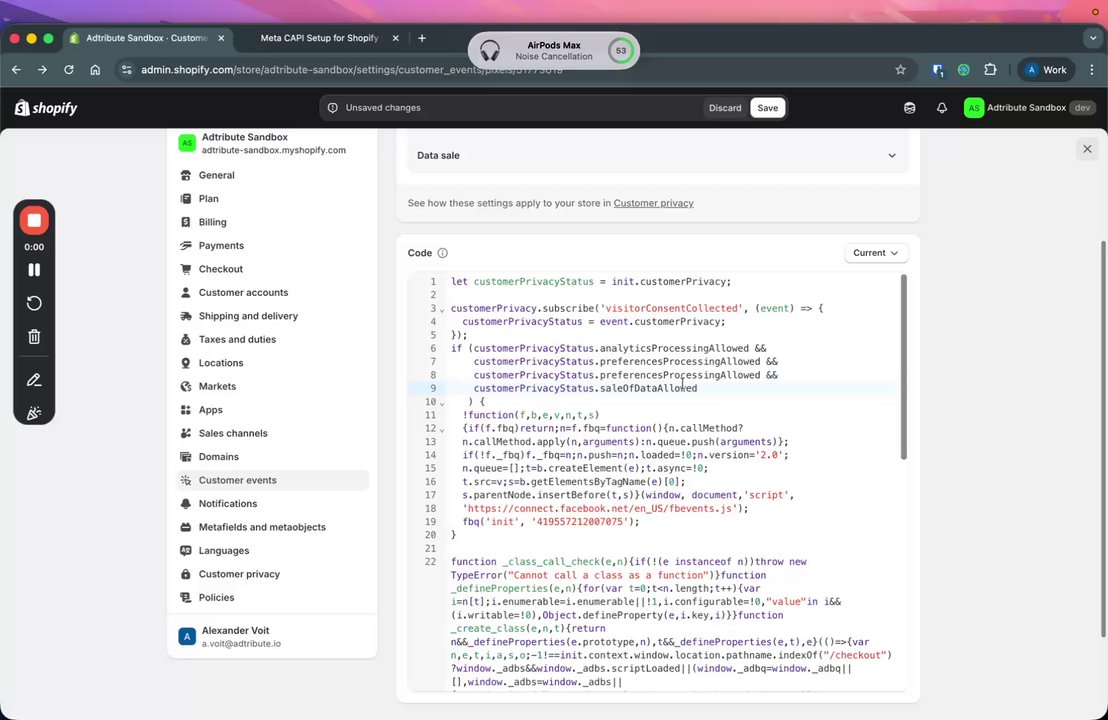 Adjusting Meta and Attribute Consent Settings
-
Log into your Shopify Account
-
Navigate to “Settings” > “Customer Events”
-
Click on the already installed adtribute pixel
-
Move the existing pixel code down and add the following at the top:
const customerPrivacyStatus = init.customerPrivacy;if (customerPrivacyStatus.analyticsProcessingAllowed &&customerPrivacyStatus.preferencesProcessingAllowed &&customerPrivacyStatus.marketingAllowed &&customerPrivacyStatus.saleOfDataAllowed) {!function(f,b,e,v,n,t,s){if(f.fbq)return;n=f.fbq=function(){n.callMethod?n.callMethod.apply(n,arguments):n.queue.push(arguments)};if(!f._fbq)f._fbq=n;n.push=n;n.loaded=!0;n.version='2.0';n.queue=[];t=b.createElement(e);t.async=!0;t.src=v;s=b.getElementsByTagName(e)[0];s.parentNode.insertBefore(t,s)}(window, document,'script','https://connect.facebook.net/en_US/fbevents.js');fbq('init', 'INSERT YOUR PIXEL ID HERE');} -
Adjust the
customerPrivacyStatusby keeping or removing the respective lines as outlined in the Loom video above. -
Replace the placeholder INSERT YOUR PIXEL ID HERE and insert your Meta pixel id. You can find your pixel in the “Events Manager” within your Ad Account / Business Manager.
-
If you have multiple pixels in one store, then you need to duplicate the last line for every pixel:
fbq('init', 'INSERT YOUR 1st PIXEL ID HERE');fbq('init', 'INSERT YOUR 2nd PIXEL ID HERE');fbq('init', 'INSERT YOUR 3rd PIXEL ID HERE');
-
-
Click “Save” to update the pixel (top middle).
Step 2: Set up Destination with Meta Pixel ID and Access Token
Section titled “Step 2: Set up Destination with Meta Pixel ID and Access Token”-
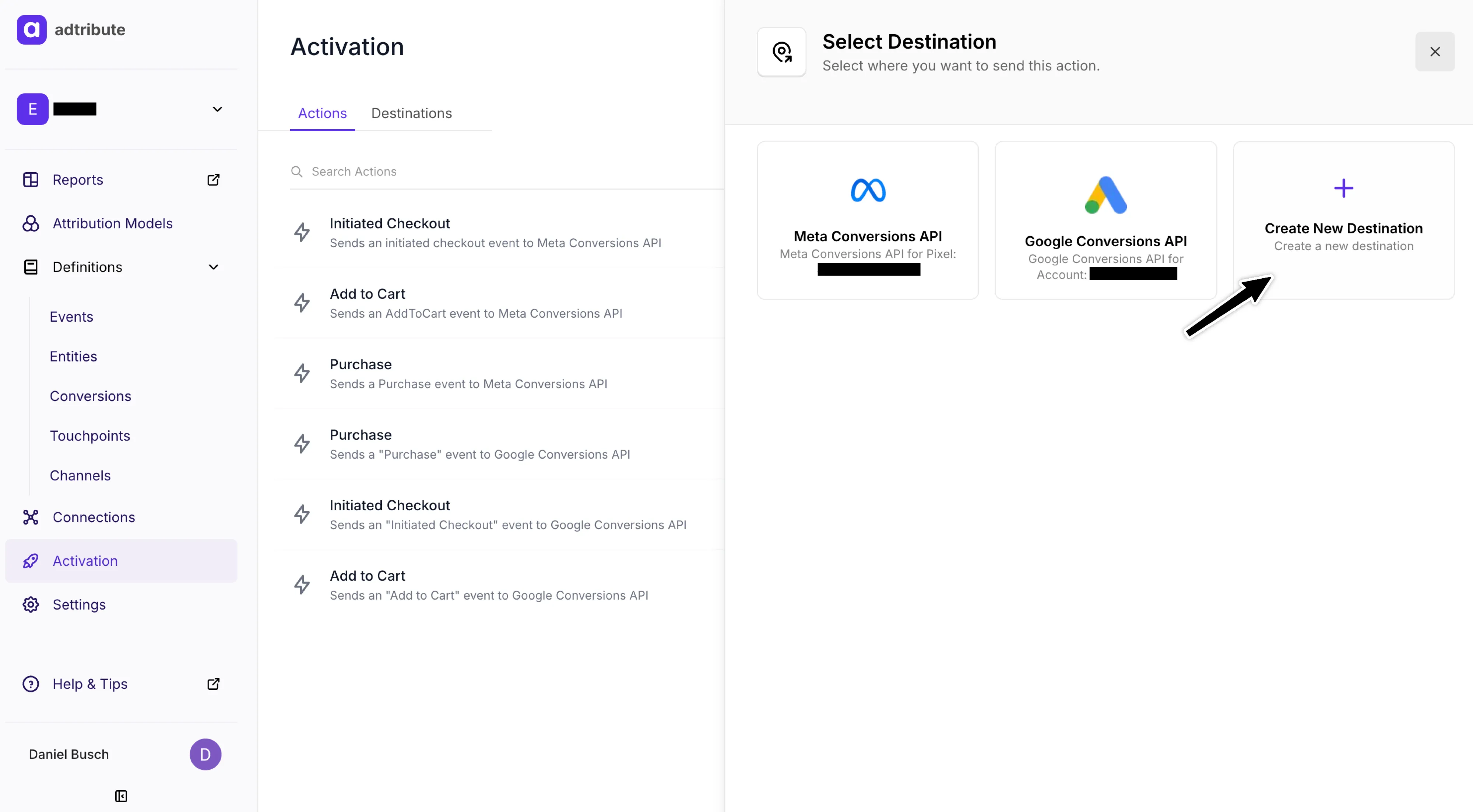
Navigate to Activation
-
Click “Add Action”
-
Click “Create New Destination”
-
To fill out the Destination Info, you need your Meta Pixel ID and Access Token.
-
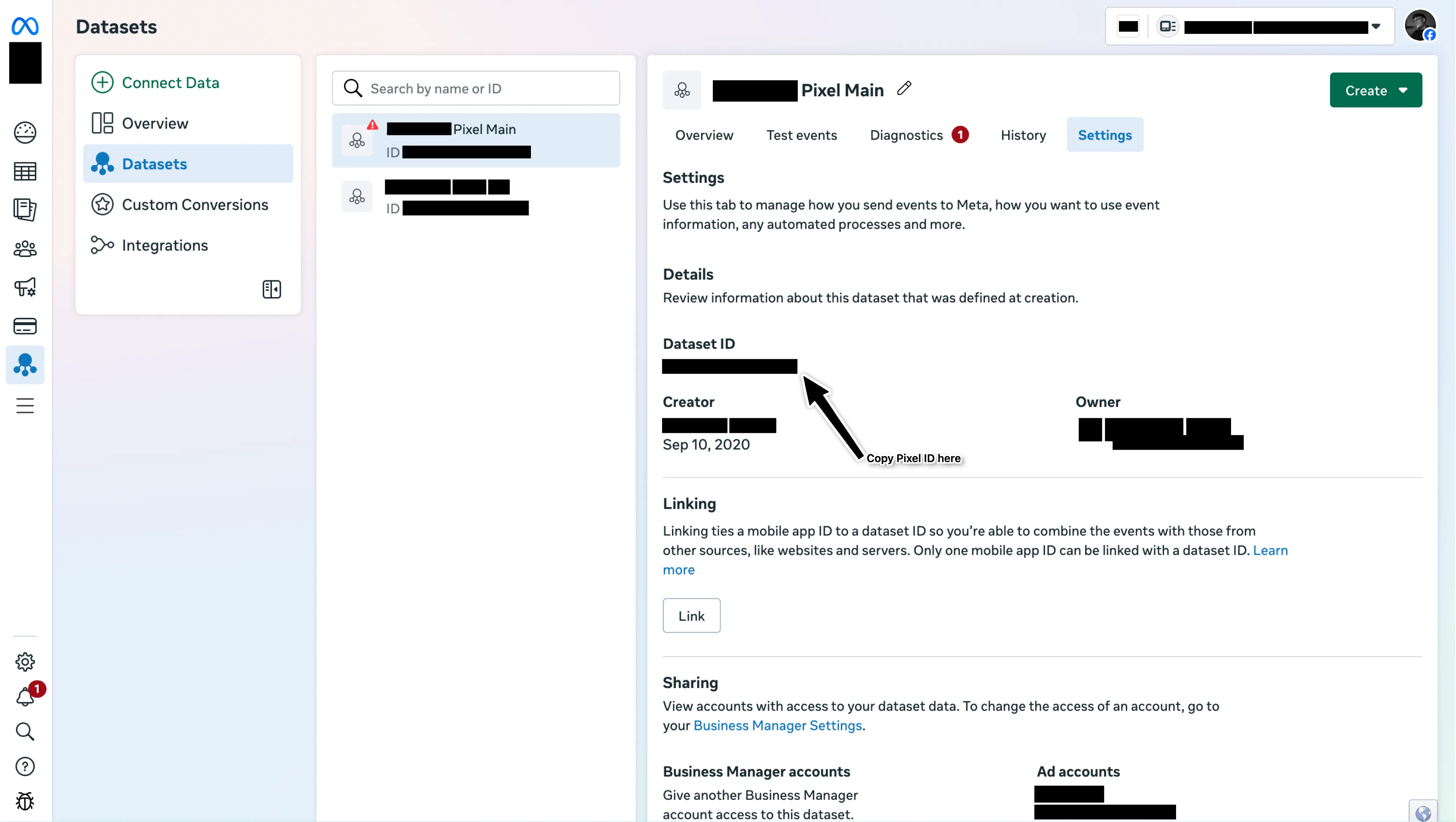
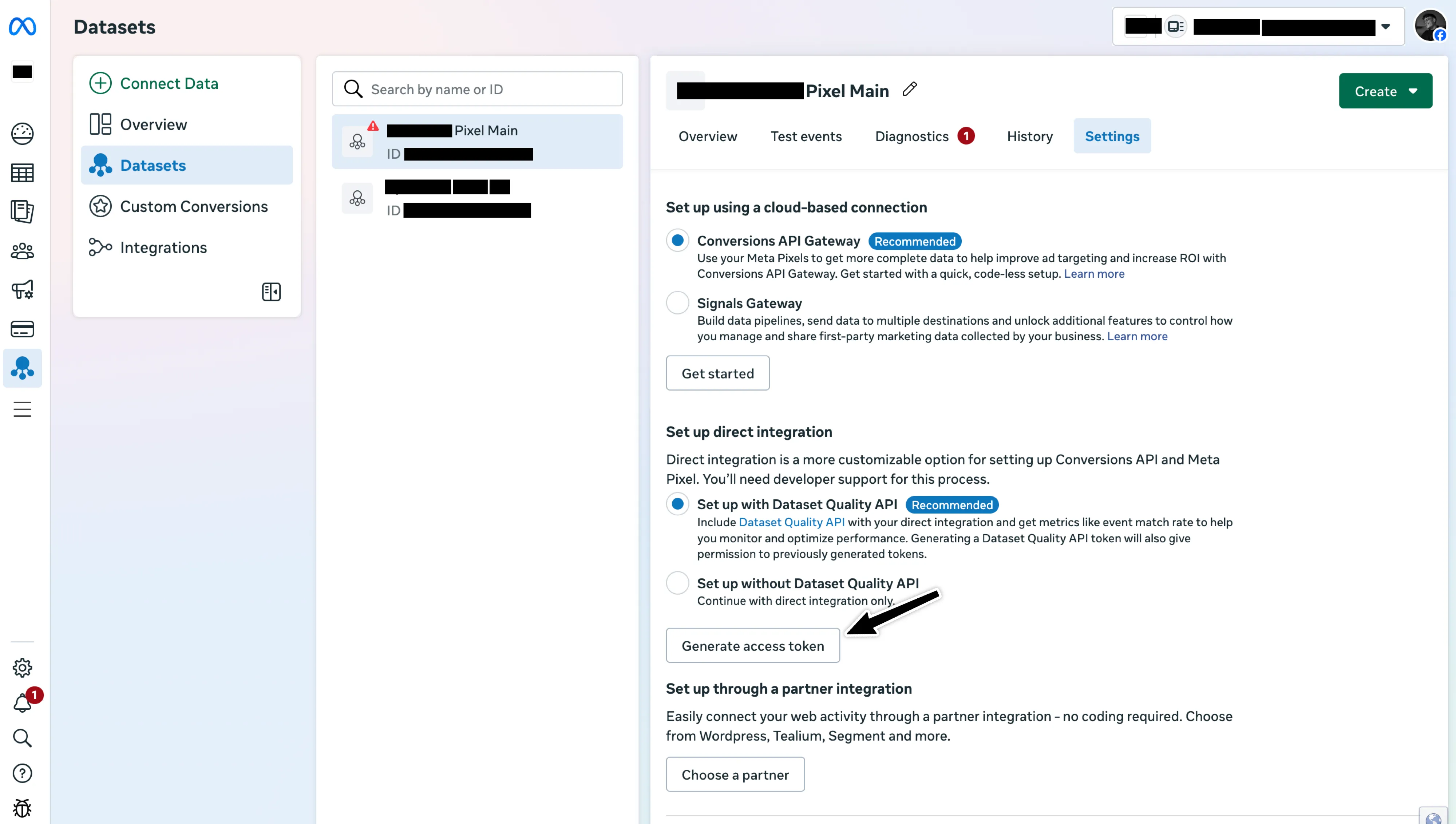
You can find your Pixel ID and Access Token in your Event Manager in your Meta Ad Account. Navigate to Event Manager > Data Sets > Your Pixel > Settings and copy and paste the Pixel ID that is shown under “Dataset ID”.
-
Scroll Down to until you reach the point where you can click the button “Generate access token”. Copy the access token.
-
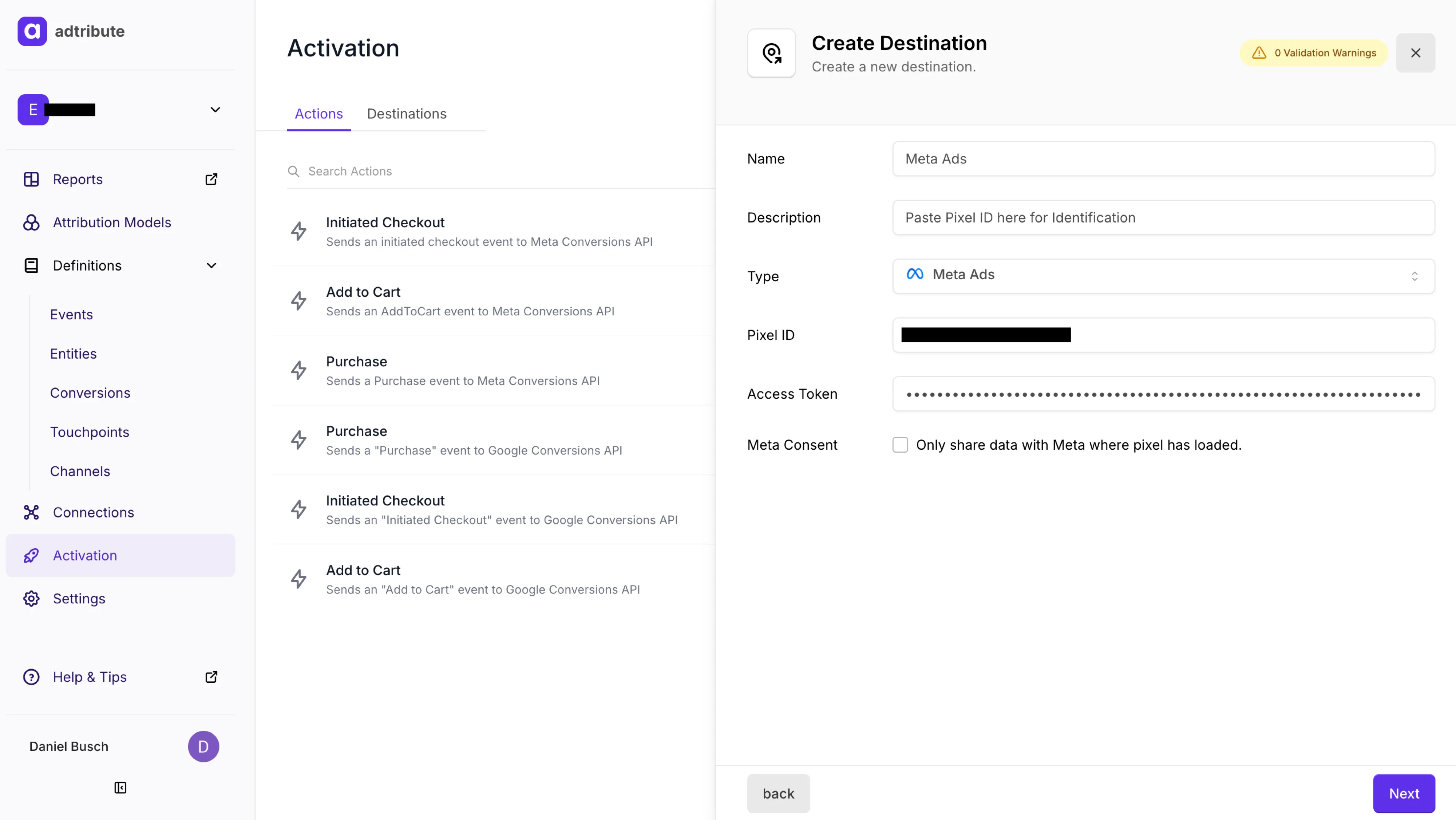
Fill out the Destination Information as shown below and click “Next”. Note that the setting for the Meta Consent is your choice - select if you want to only send data after consent.
Step 3: Create Conversion & Attribute for Meta CAPI
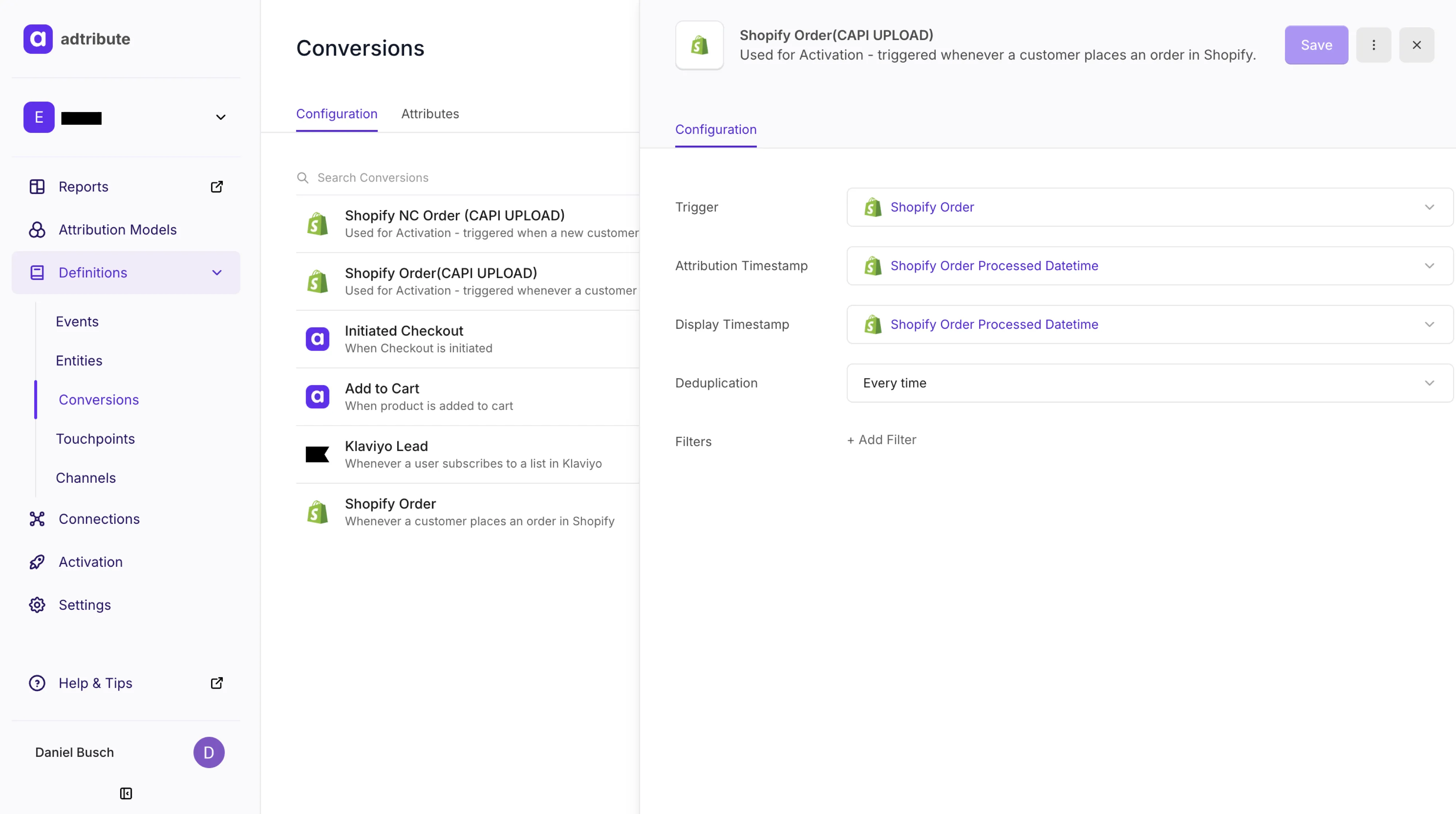
Section titled “Step 3: Create Conversion & Attribute for Meta CAPI”First you have to create the Conversion you want to send to Meta.
- Go to Definitions › Events.
- Click “Add Event” top right.
- Choose the Trigger, e.g. Shopify Order (not Line Item!)
Example:
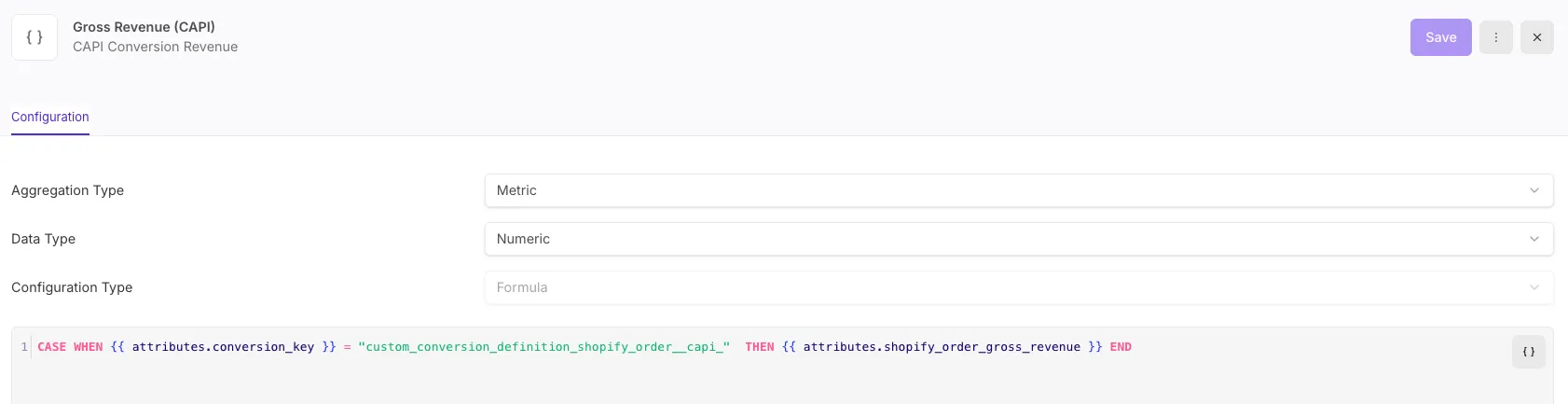
Now, you have to create the according attribute that holds its value, e.g. Gross Revenue:
- Go to Definitions › Attributes.
- Click “Add Attribute” top right.
- Select “Event” as Definition Type, “Metric” as Aggregation Type and “Numeric” as Data Type.
- Select “Formula” as Configuration Type and create the formula that defines the attribute.
Example:
Step 4: Create Action to send Event Data to Meta
Section titled “Step 4: Create Action to send Event Data to Meta”By creating the action, you define which event should be sent to Meta. This is the next step after the destination or the first step if you create a new action for an existing destination.
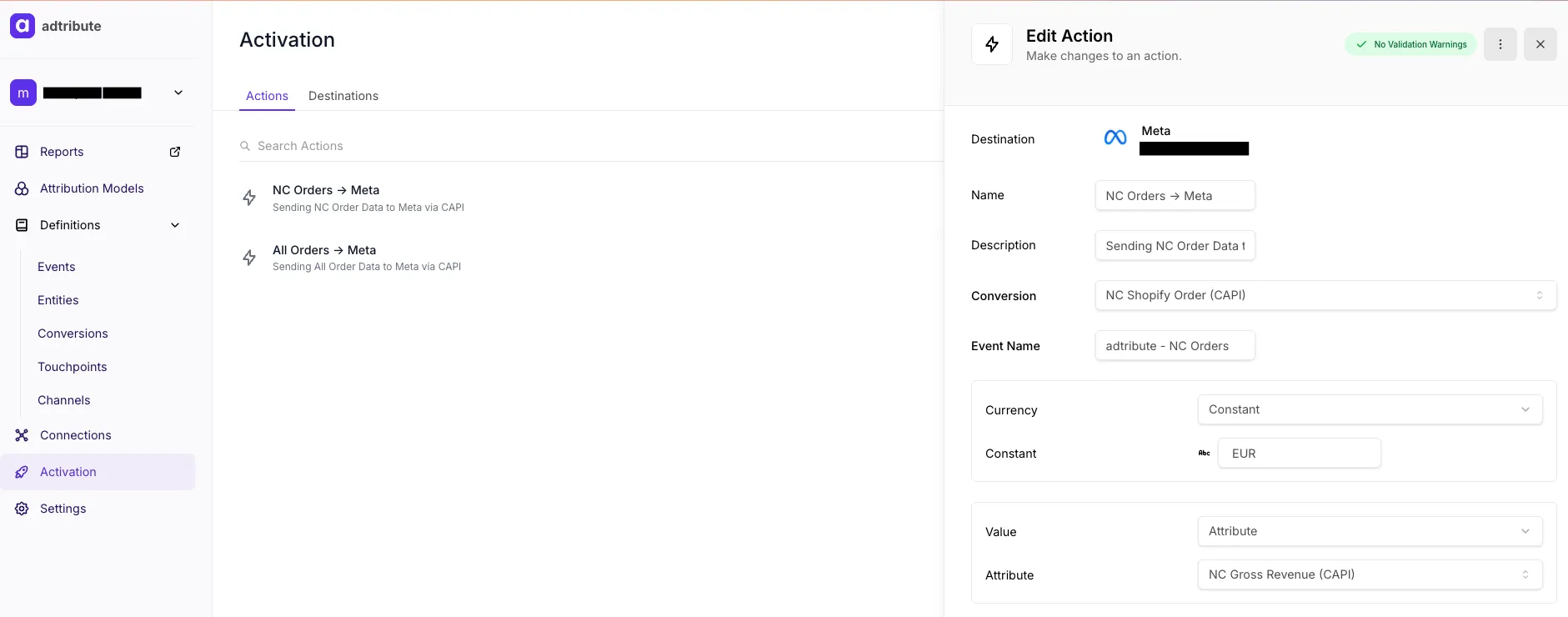
Fill out the Information as follows (example screenshot below):
-
Choose the Name and Description freely but make sure they are descriptive.
-
For the Conversion choose the CAPI Conversion you have created before.
-
The Event Name is the actual name that will appear in Meta.
WE HIGHLY ADVISE TO NOT NAME IT THE SAME AS AN EXISTING META EVENT!
And this is for two reasons:- Mitigating the risk of worse performance with new data.
- Having the opportunity to test the new event against the existing, to actually see what works better based on the current benchmark.
-
For Currency, you can select Constant and then either EUR or USD.
-
For Value you need to select Attribute and the Value Metric that is linked to the event. In this case it is the “NC Gross Revenue (CAPI)” Metric you have created for the “NC Shopify Order (CAPI)” Conversion.
-
All done, you can click “Add Action” (or “Save Changes” when editing an action) at the bottom right.
Important: Optimize Ads with adtribute data
Section titled “Important: Optimize Ads with adtribute data”To make sure the adtribute data is actually better for optimization, we advise to follow these two steps:
-
Matching Quality: Before you start optimizing for the new “adtribute - Shopify Order” event, wait until the Matching Quality in the “Events Manager” is better than your “normal/previous order” event.
-
Split Test: Setup or duplicate identical Ad Sets where only the event you optimize for is different - your “normal/previous order” event vs the “adtribute - Shopify Order” event.
Set this up for multiple Ad Sets and test it for a good amount of time to achieve a statistically significant comparison and conclusion.