SamCart
Integrate SamCart to adtribute.
You need to follow these steps for each SamCart account you wish to connect:
Create New SamCart Connection
Section titled “Create New SamCart Connection”- Go to the adtribute app.
- Navigate to Sources › Connections.
- Click on “Create Connection” in the top right corner.
- Search for the “SamCart” connection and select it.
- The Connection is created right away as “SamCart Connection (New)” and a “Webhook URL” is generated.
- Rename the Connection as you like, e.g. the Account Name, in the name field at the top of the panel (it is saved when you press Enter).
- Copy the Webhook.
Now you need to set up the Webhooks app in SamCart.
Set up the Webhooks App in SamCart
Section titled “Set up the Webhooks App in SamCart”Install the Webhooks App
- Login to SamCart.
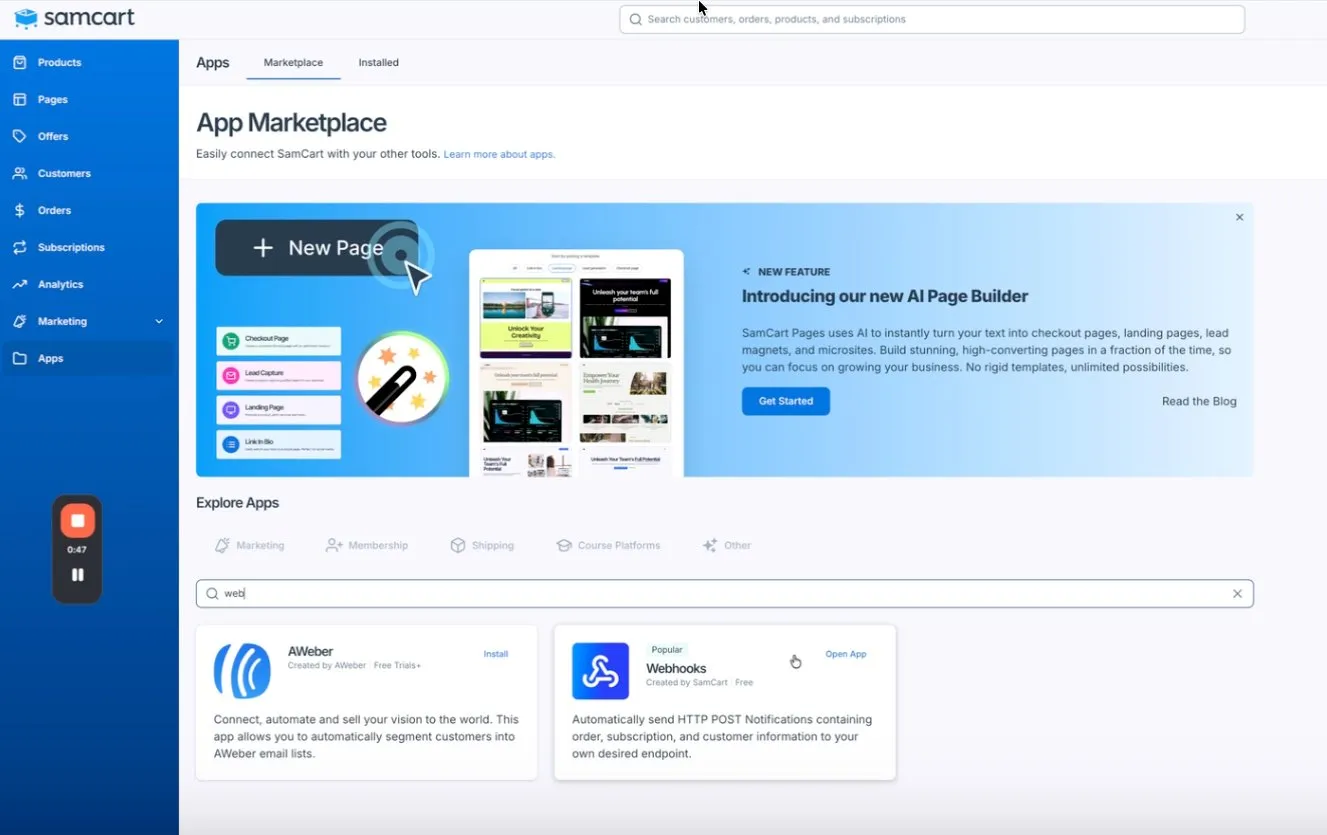
- Navigate to “Apps” > “Marketplace”.
- Search for “Webhooks” and select the “Webhooks”.
Connect a New App Instance
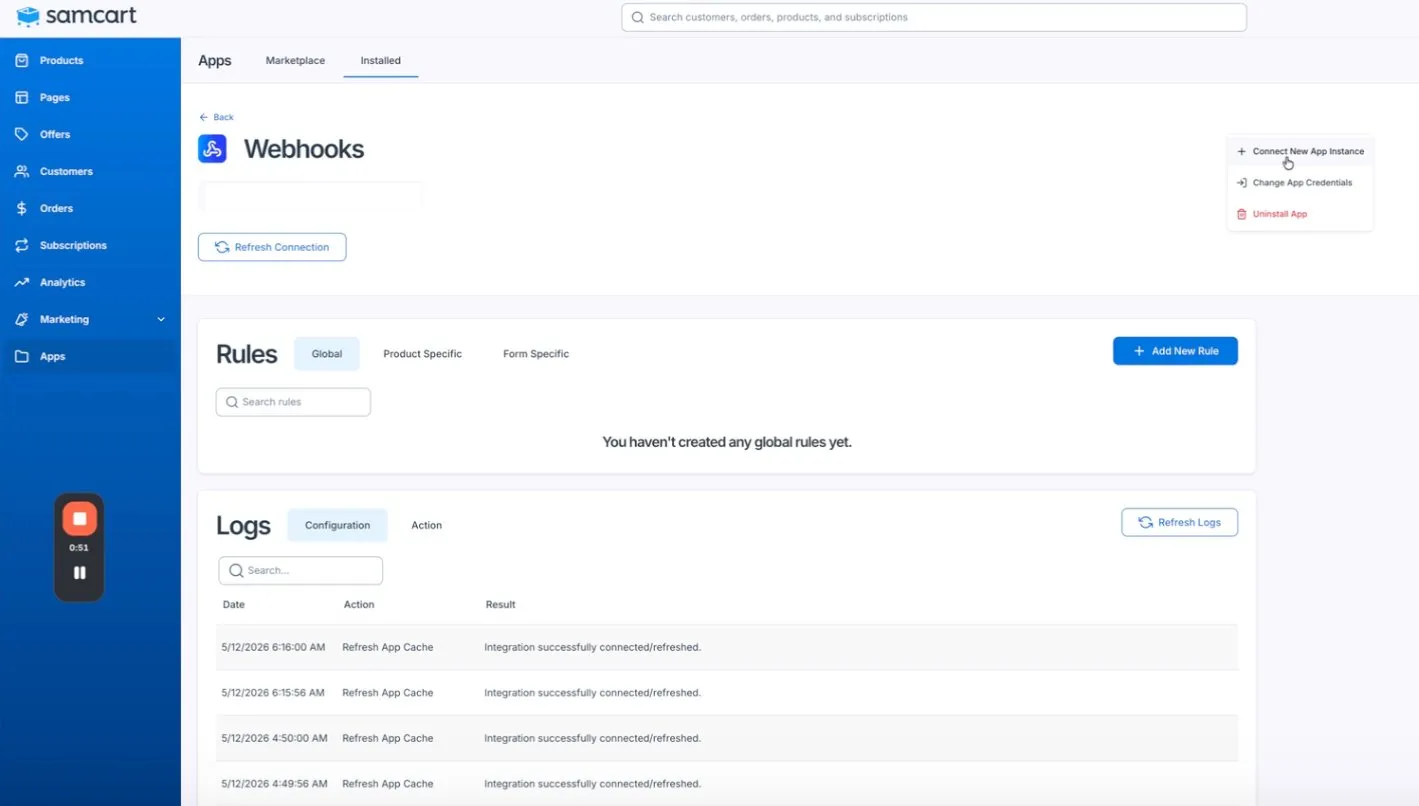
- On the installed Webhooks app page, open the menu (⋮) in the top right.
- Click on “Connect New App Instance”.
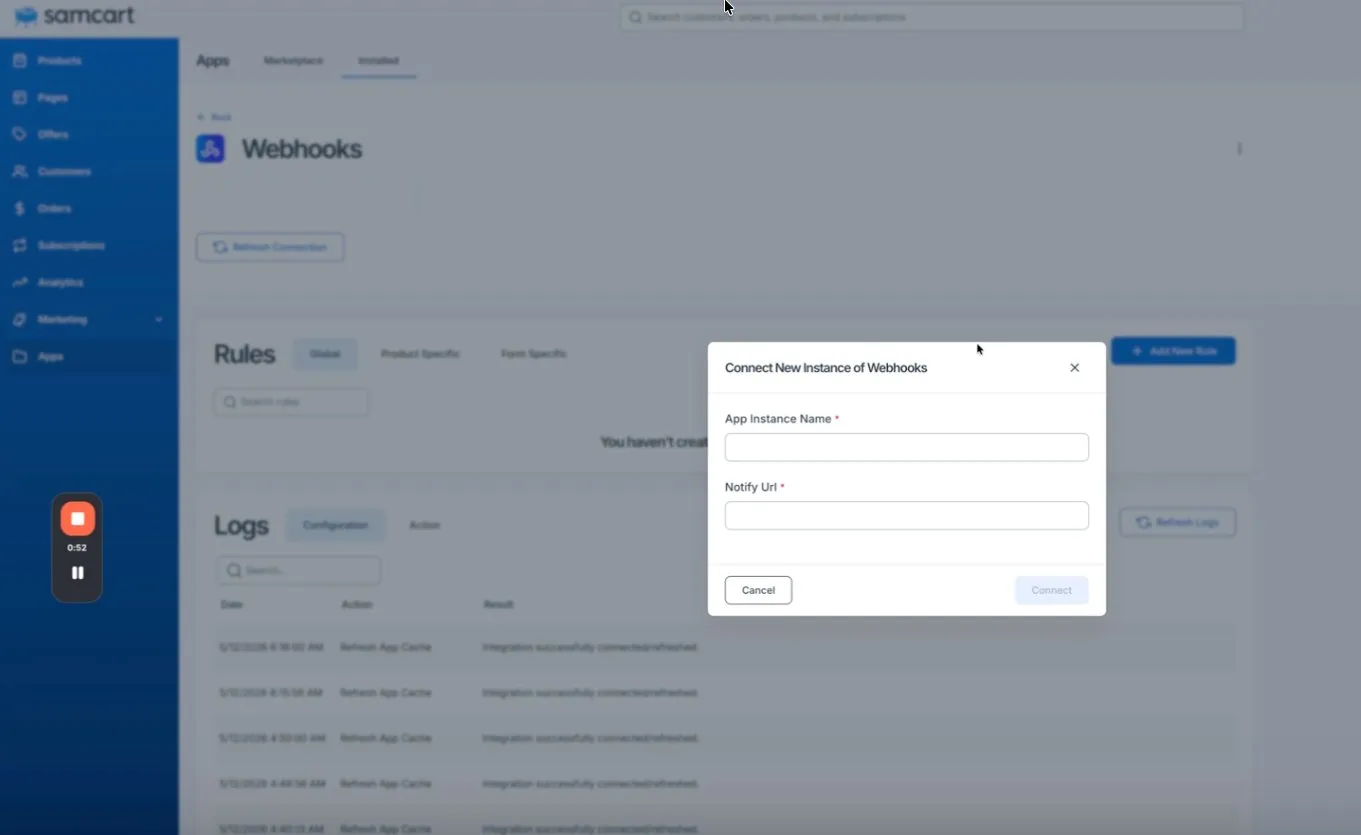
- In the “Connect New Instance of Webhooks” dialog, set the “App Instance Name” to “adtribute”.
- Paste the “Webhook URL” from the adtribute app into the “Notify Url” field.
- Click “Connect”. The new instance appears as its own “adtribute” tab.
Add the Rule
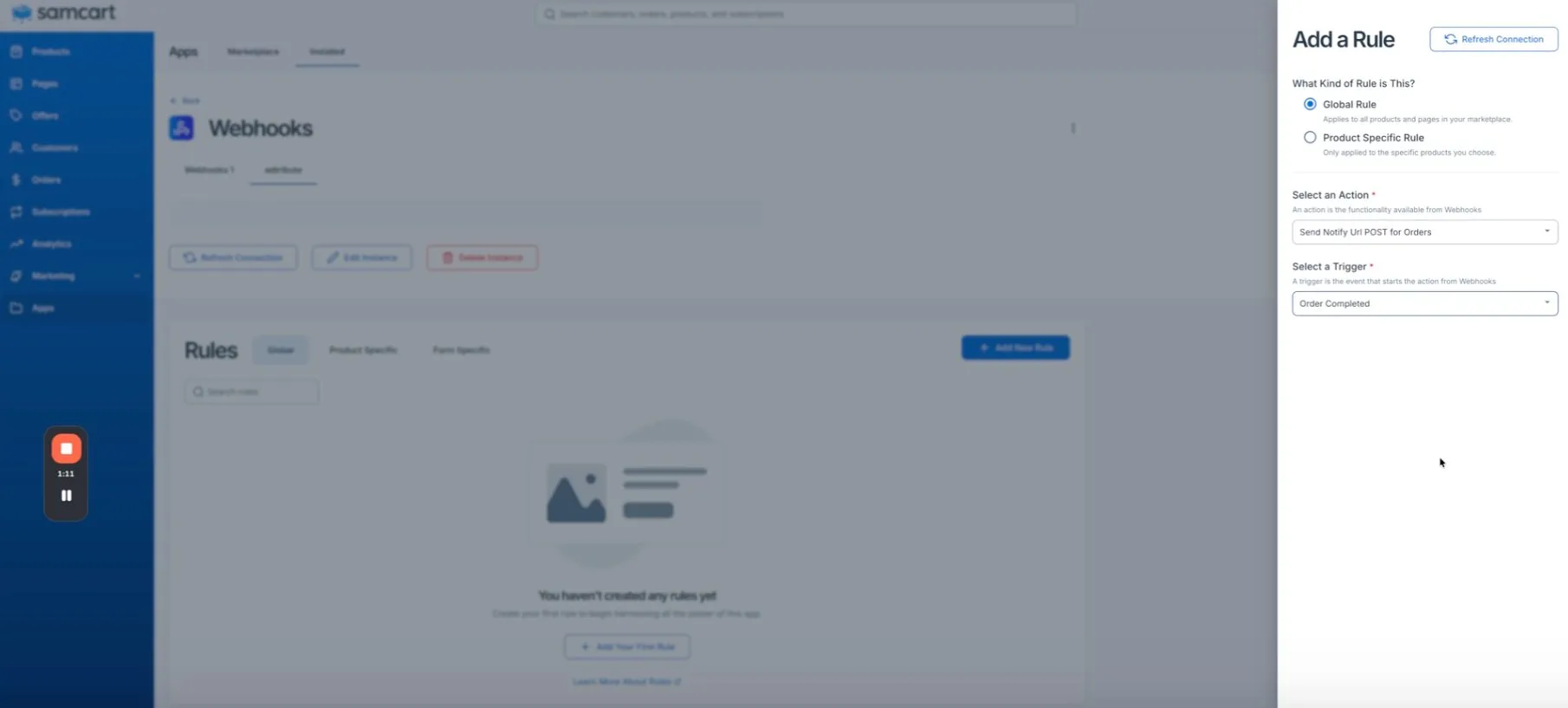
- Click on “Add New Rule”.
- Under “What Kind of Rule is This?”, select “Global Rule” (applies to all products and pages in your marketplace).
- For “Select an Action”, choose “Send Notify Url POST for Orders”.
- For “Select a Trigger”, choose “Order Completed”.
- Save the rule.
Install the adtribute Tracking Code
Section titled “Install the adtribute Tracking Code”To track the visitor session alongside the order data, install the adtribute Tracking Code in SamCart:
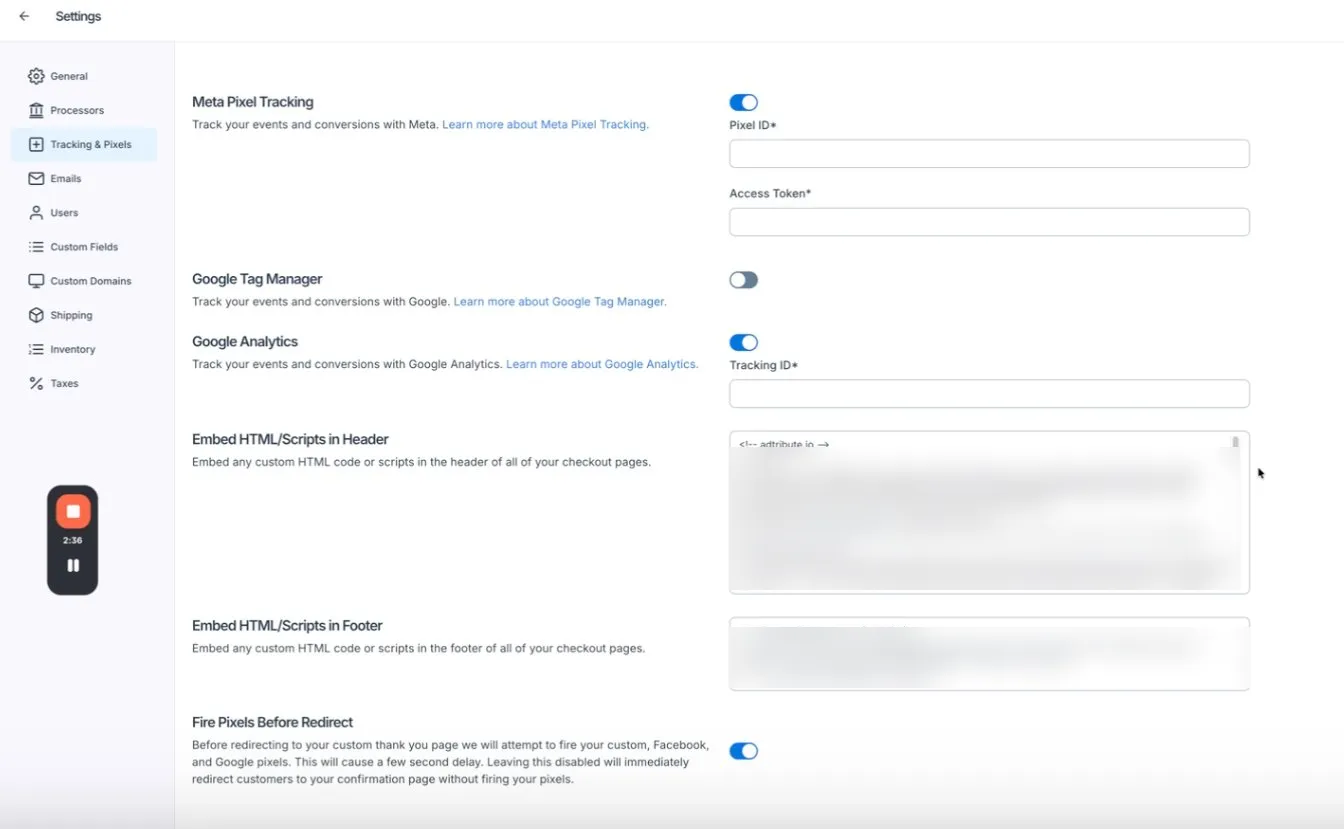
- Go to “Settings” > “Tracking & Pixels”.
- Find the section “Embed HTML/Scripts in Header”.
- Paste your adtribute Tracking Code at the very top into the field and save.
Complete Connection
Section titled “Complete Connection”After you have set up the Webhooks app (Install + Connect Instance + Rule) and installed the Tracking Code, click on “I did that” in the adtribute app. The connection is then complete and data is flowing to adtribute.