
Integrate BigQuery Event Data
How to connect your BigQuery data tables to adtribute to import custom events
What is the BigQuery Event Connection?
Section titled “What is the BigQuery Event Connection?”The BigQuery Event Connection allows you to import data from your own BigQuery tables directly into adtribute as events. This is useful when you have custom event data stored in BigQuery that you want to analyze alongside your other marketing data in adtribute.
Unlike the BigQuery Lookup Attribute which pulls individual values from a table, the BigQuery Connection imports entire event datasets. This means you can bring in custom conversion events, user actions, or any other time-based data that lives in your BigQuery warehouse.
Common use cases:
- Import offline conversions that are stored in your data warehouse
- Connect custom event data from your product or CRM
- Add supplementary user behavior data to your marketing analytics
Access Connection in adtribute
Section titled “Access Connection in adtribute”- Open the adtribute app
- Navigate to Sources › Connections
- Click on “Create Connection”
- Search for “BigQuery Event” and select it
- Add a descriptive name and description for the connection at the top
- Describe “Event Source” and “Event Object”
- Click “Next”
Grant View Access to BQ Project
Section titled “Grant View Access to BQ Project”Before entering your project, dataset, and table details, grant adtribute access to your BigQuery project.
Please make sure to use a resource located in a “multi-region EU” cluster.
-
Login to your GCP (Google Cloud Platform) Account
-
Go to your according GCP Project
-
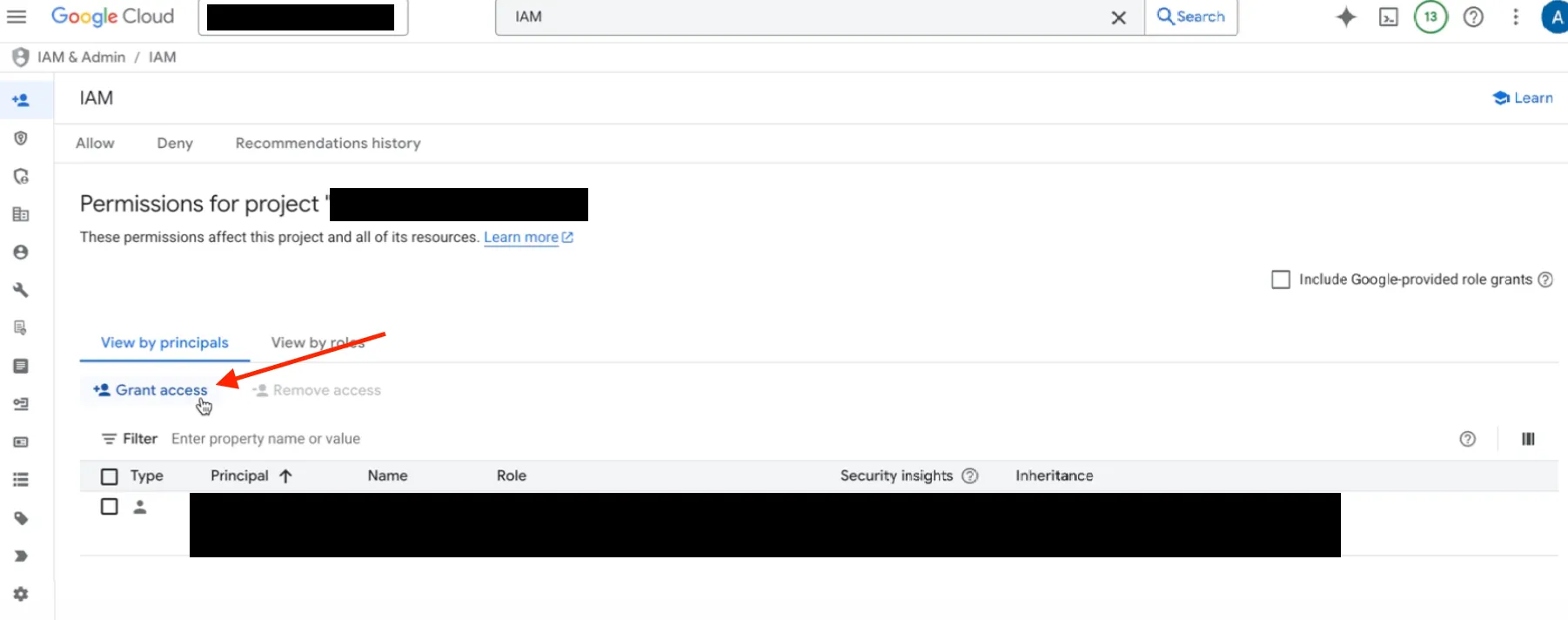
Navigate to the “IAM” section
-
Click “Grant access”
-
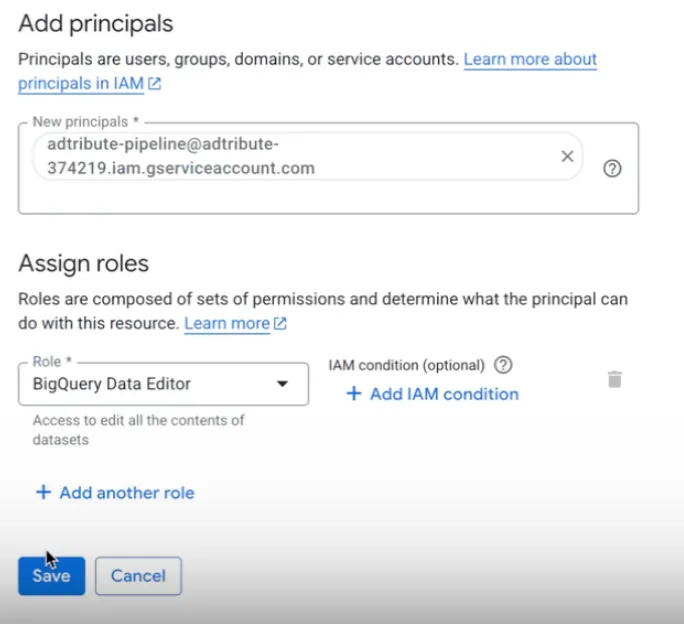
Grant our email access:
adtribute-pipeline@adtribute-374219.iam.gserviceaccount.com -
Provide it with the Role “BigQuery Data Viewer” and save (“Data Editor” access is not necessary in this case):
Map your BQ Data
Section titled “Map your BQ Data”Once you’ve granted the necessary permissions, you can continue the connection flow in adtribute.
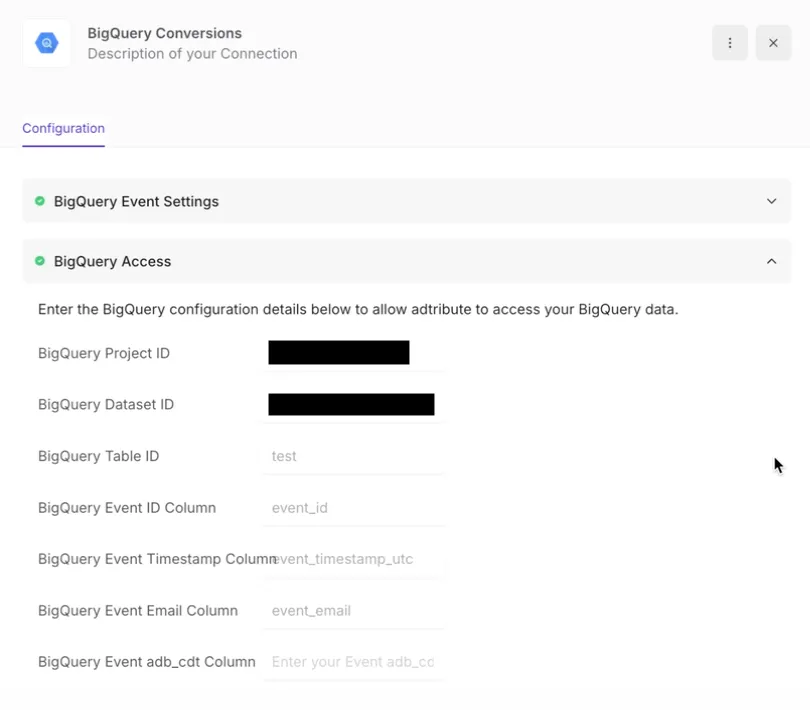
Fill out the following columns and make sure you fill in the IDs and names exactly as they are in your BQ:
- BigQuery Project ID: Your GCP project ID
- BigQuery Dataset ID: The BigQuery dataset that contains your table
- BigQuery Table ID: The specific table name you want to connect
- BigQuery Event ID Column: The column name that contains a unique identifier for each event
- BigQuery Event Timestamp Column: The column name that contains the event timestamp
- BigQuery Event Email Column: The column name that contains user email addresses
- BigQuery Event adb_cdt Column (optional): Enter if needed for your use case
After filling these out, it will look similar to this:
Complete the Connection
Section titled “Complete the Connection”Lastly, click “Connect”.
After that, the status will show as Awaiting data initially
- adtribute creates a sync process that runs every 15 minutes in the background
- Once the first successful data sync completes, the status changes to Connected
- Your BigQuery data will continue to sync automatically every 15 minutes