
WooCommerce
How to connect WooCommerce to adtribute.
Create Connection in adtribute
Section titled “Create Connection in adtribute”- Open the adtribute App.
- Go to Sources › Connections and click on “Create Connection”.
- Search for “WooCommerce” and select it.
- Name the Connection as you like, e.g. the Account Name.
- Fill out your WooCommerce Shop Domain.
Now you need to get the API Keys (Consumer Key and Secret) from WooCommerce.
Configure Permalinks
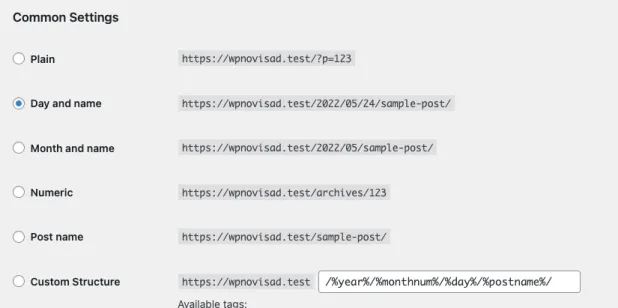
Section titled “Configure Permalinks”Before setting up the API access, it is necessary that the settings for permalinks are set to anything else but “Plain”:
-
Login to WooCommerce.
-
Navigate to “Settings” > “Permalinks”.
-
Select “Day and name”. (You can keep it how it is, as long as it is not “Plain”).
Retrieve API keys from WooCommerce
Section titled “Retrieve API keys from WooCommerce”-
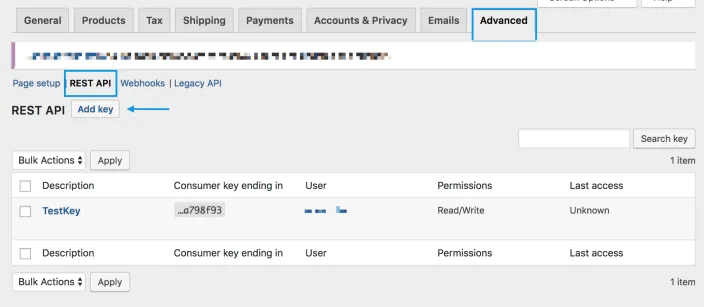
Navigate to “Settings” > “Advanced” > “REST API”.
-
Click on “Add key”.
-
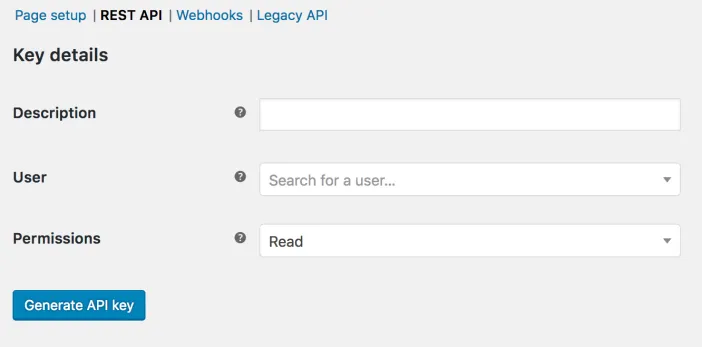
Add a Description “adtribute”.
-
Select yourself as a user (must be admin).
-
Select “Read” as a Permission.
-
Click “Generate API Key” and WooCommerce creates API keys for that user.
-
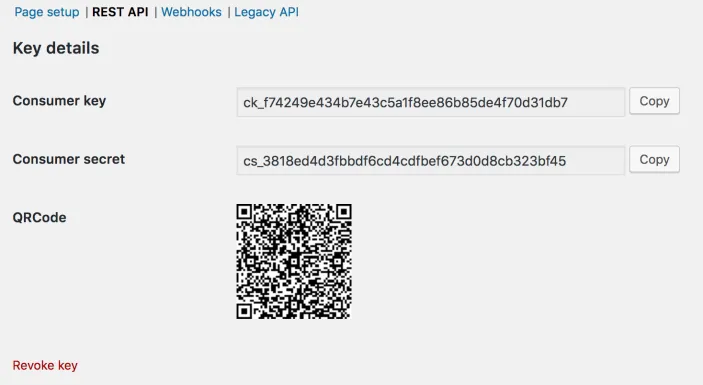
Now, copy the generated “Consumer Key” and “Consumer Secret” and paste them into the according fields in the adtribute app (also save them for yourself).
Complete Connection
Section titled “Complete Connection”After you have pasted the API Keys and entered your domain, just click on “Next”. It will load for a short bit and tell you on the bottom right if the Connection was successful and show up within your Connections.
You have to repeat those steps for every WooCommerce Shop / Domain, you wish to connect.