
Microsoft Ads
How to connect Microsoft Ads to adtribute.
Create Connection in adtribute
Section titled “Create Connection in adtribute”- Open the adtribute App.
- Go to Sources › Connections and click on “Create Connection”.
- Search for “Microsoft Ads” and select it.
- Name the Connection as you like, e.g. the Account Name.
Before going through Connection Process you have to confirm that you have implemented the UTM Parameters that are shown.
Implement UTM Parameter
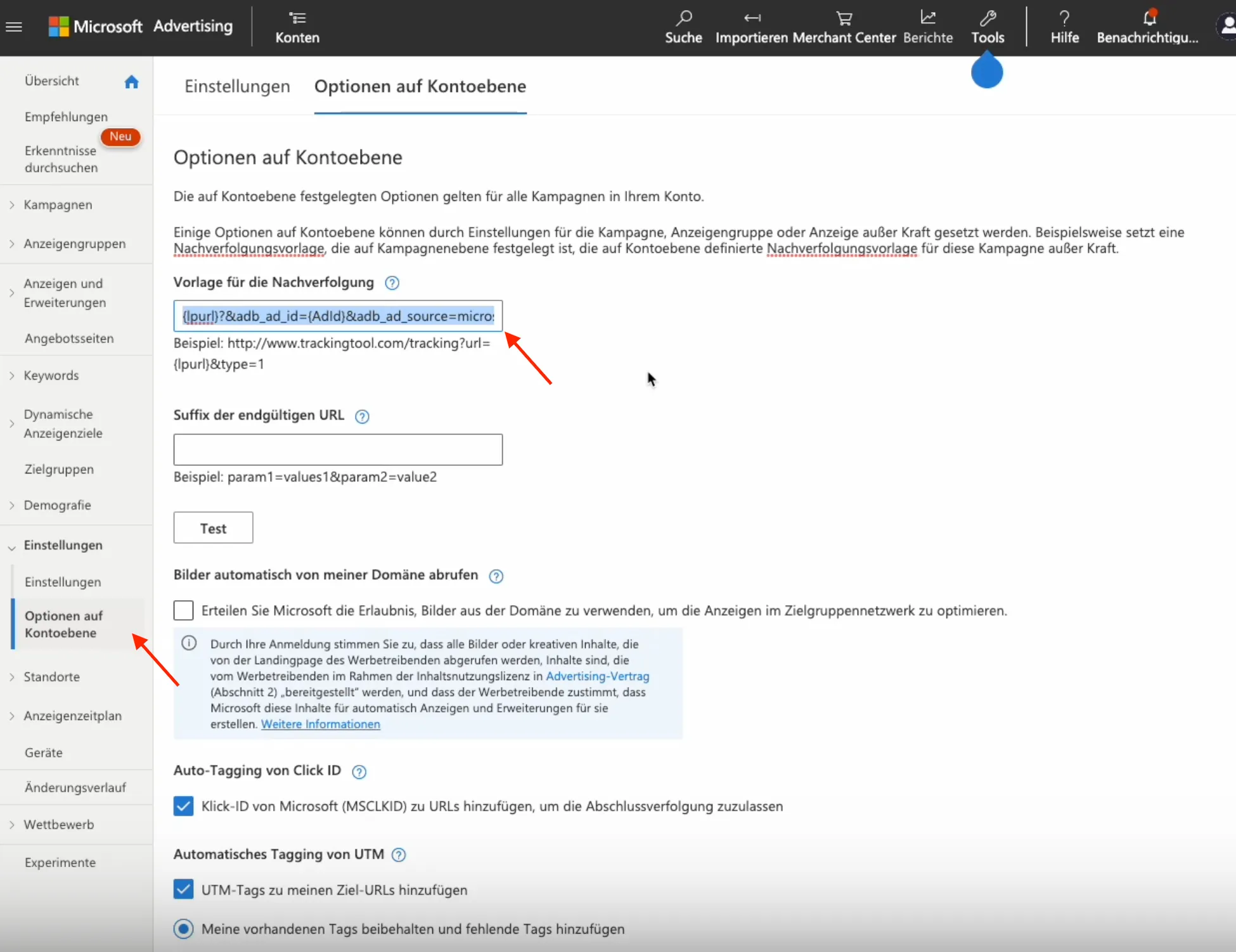
Section titled “Implement UTM Parameter”{lpurl}?&adb_ad_id={AdId}&adb_ad_source=microsoft&adb_click_id={msclkid}&adb_campaign_id={CampaignId}&adb_adgroup_id={AdGroupId}&adb_target_id={TargetId}For Microsoft Ads the UTM Parameter need to be implemented on Account Level:
-
Login to your Ad Account.
-
Click on “Campaigns” and then navigate to “Settings” > “Account level options”.
-
Implement the copied “UTM Parameter” into the “Tracking Template” field as shown in the screenshot:
Microsoft Ads Connection Flow
Section titled “Microsoft Ads Connection Flow”To start the connection flow simply click “Connect”:
-
On the Fivetran page you can click “Continue”.
-
Click “Authorize” and login to your Ad Account. At the next screen click “Accept” to grant access.
-
Select the Ad Accounts you want to connect.
-
Keep the “Historical Sync Time Frame” as it is - adtribute presets it to all time. The maximum historical sync time frame is 180 days, even when longer settings are selected.
-
Keep the other settings and click “Save & Test”.
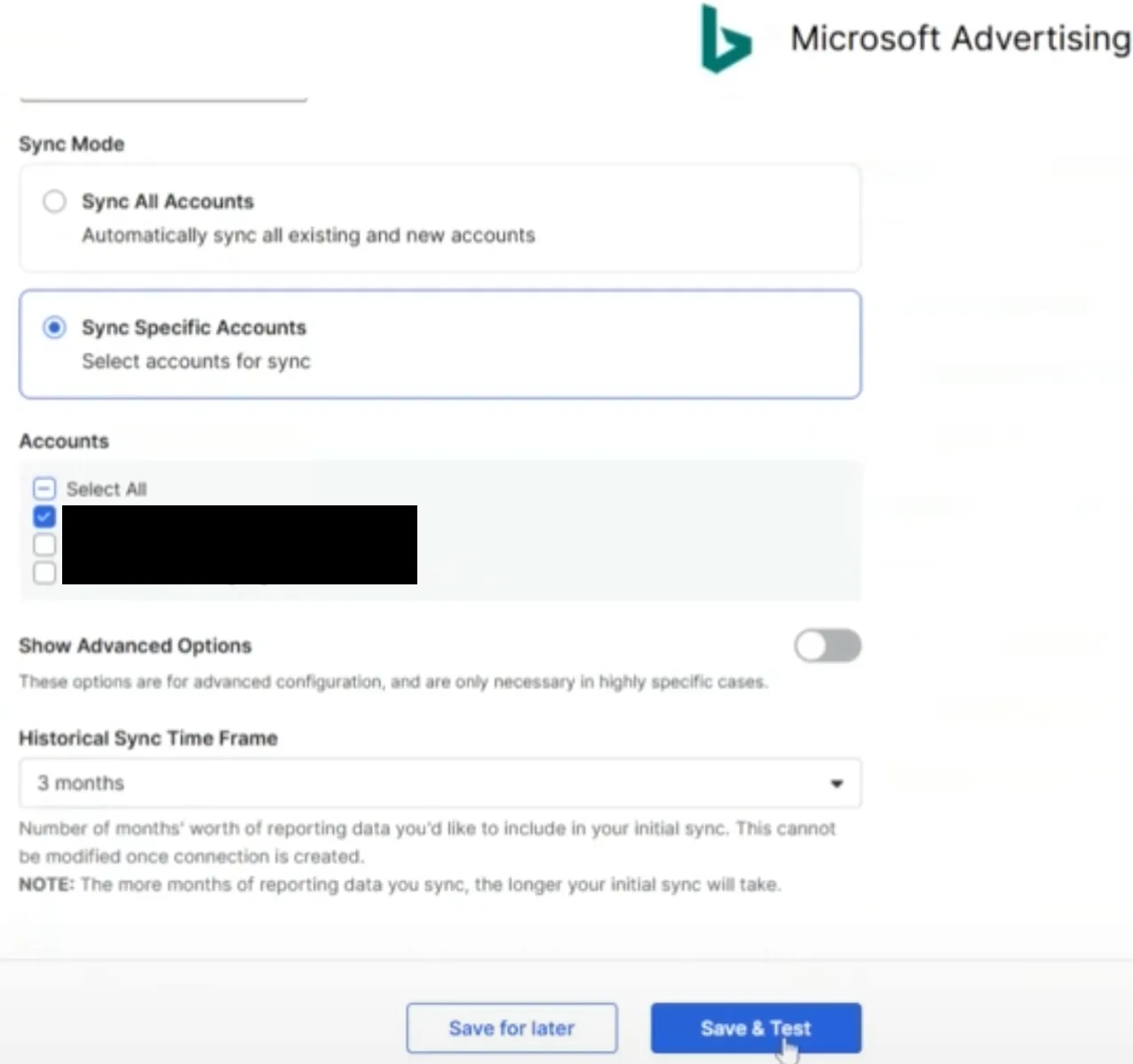
It will validate for a short while and tell you if the Connection was successful.
Complete Connection
Section titled “Complete Connection”After the successful Connection Flow it will redirect you back to the adtribute app and you can find the Microsoft Ads Connection within all of your Connections.