
Klaviyo
How to connect Klaviyo to adtribute.
Create Connection in adtribute
Section titled “Create Connection in adtribute”- Open the adtribute App.
- Go to Sources › Connections and click on “Create Connection”.
- Search for “Klaviyo” and select it.
- Name the Connection as you like, e.g. the Account Name.
Now you need to get the API Key from Klaviyo.
Retrieve API Key from Klaviyo
Section titled “Retrieve API Key from Klaviyo”-
Login to Klaviyo.
-
Click on your Account Icon (bottom left).
-
Navigate to “Settings” > “API Keys”.
-
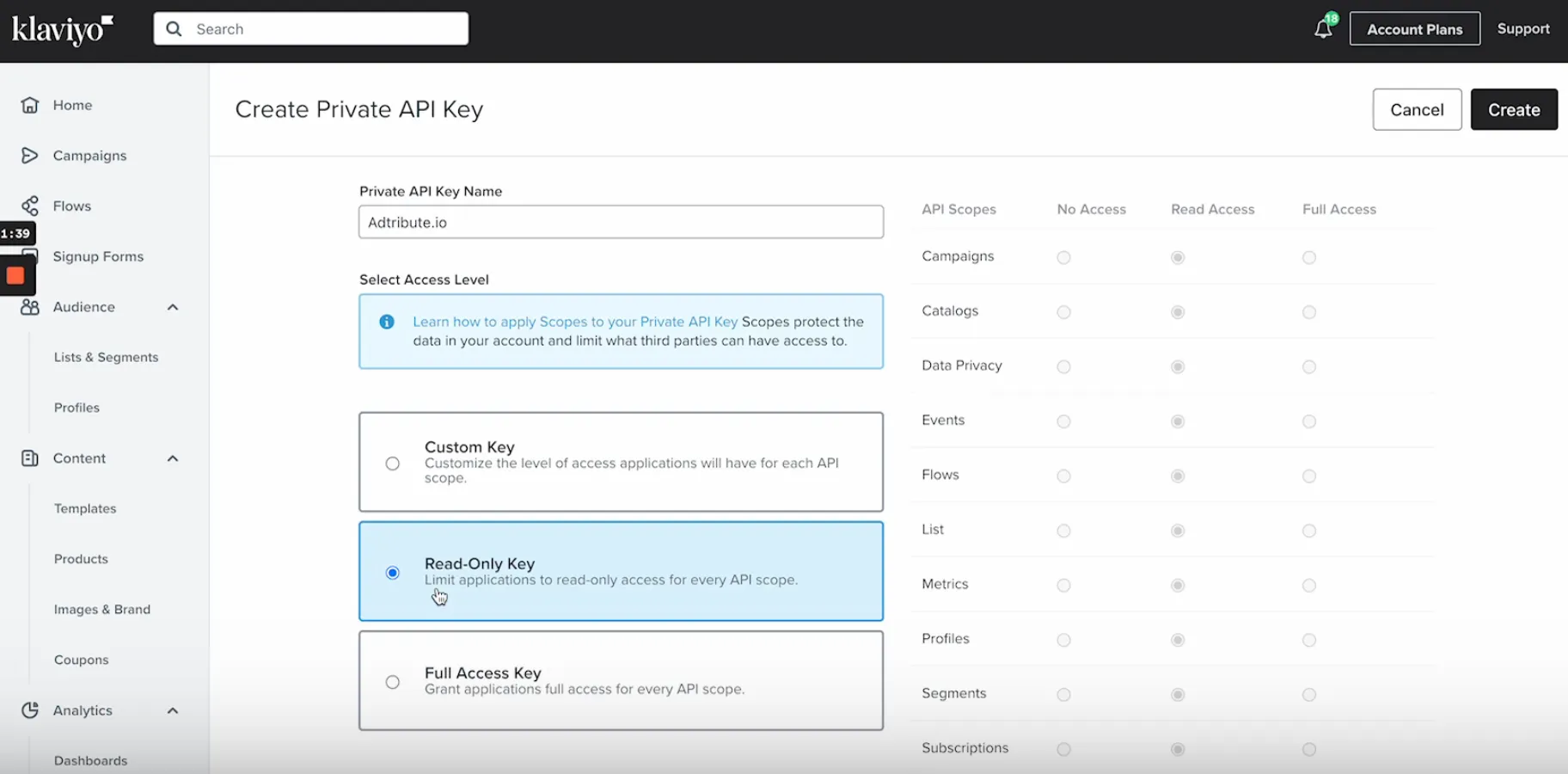
Click on the “Create Private API Key” Button.
-
Call the Key “adtribute.io” and select “Read-Only-Key”.
-
Now click on “Create” at the top right.
-
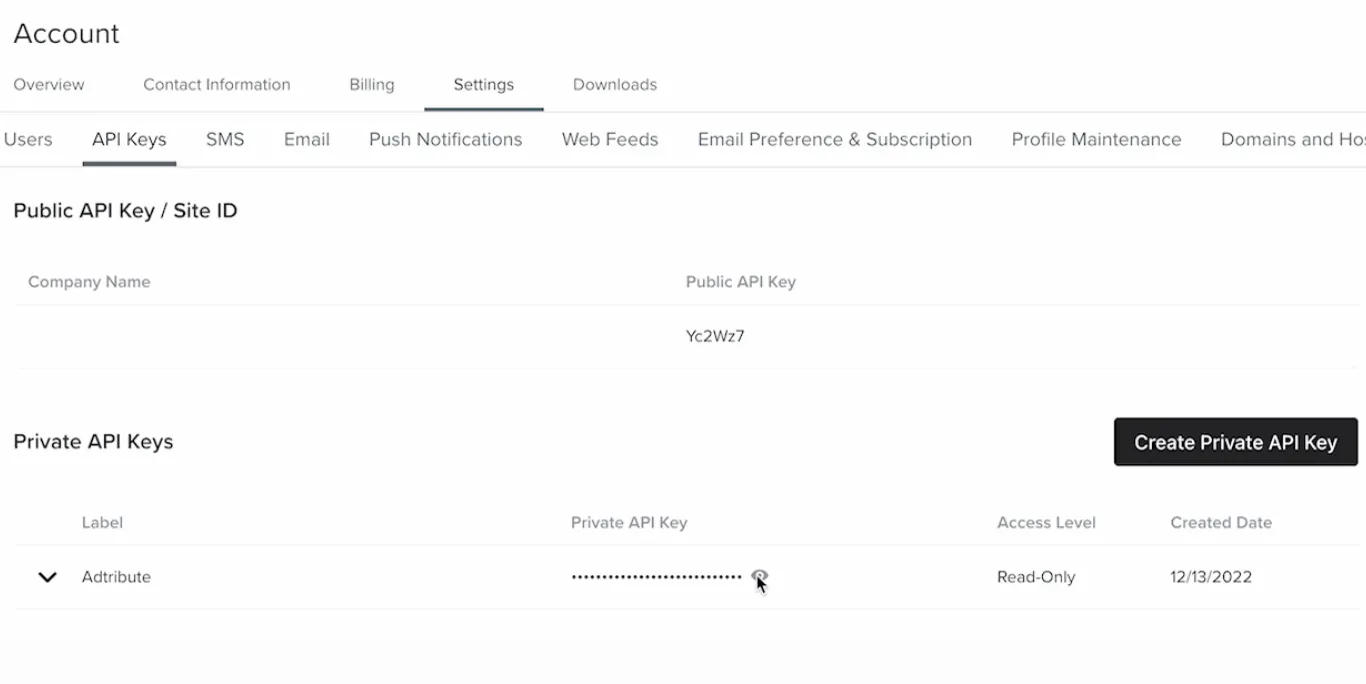
Now you can click on the “Eye-Icon” to show and copy the API Key
-
Lastly, paste the copied Key into the “API Key” field in the adtribute App and click on “Next”.
Set up UTM Parameters
Section titled “Set up UTM Parameters”The second bigger step is to set up the UTM Parameters globally for Klaviyo:
-
Within the Settings navigate to “Other” > “UTM Tracking”
-
Now, click on “Add a custom UTM parameter”
-
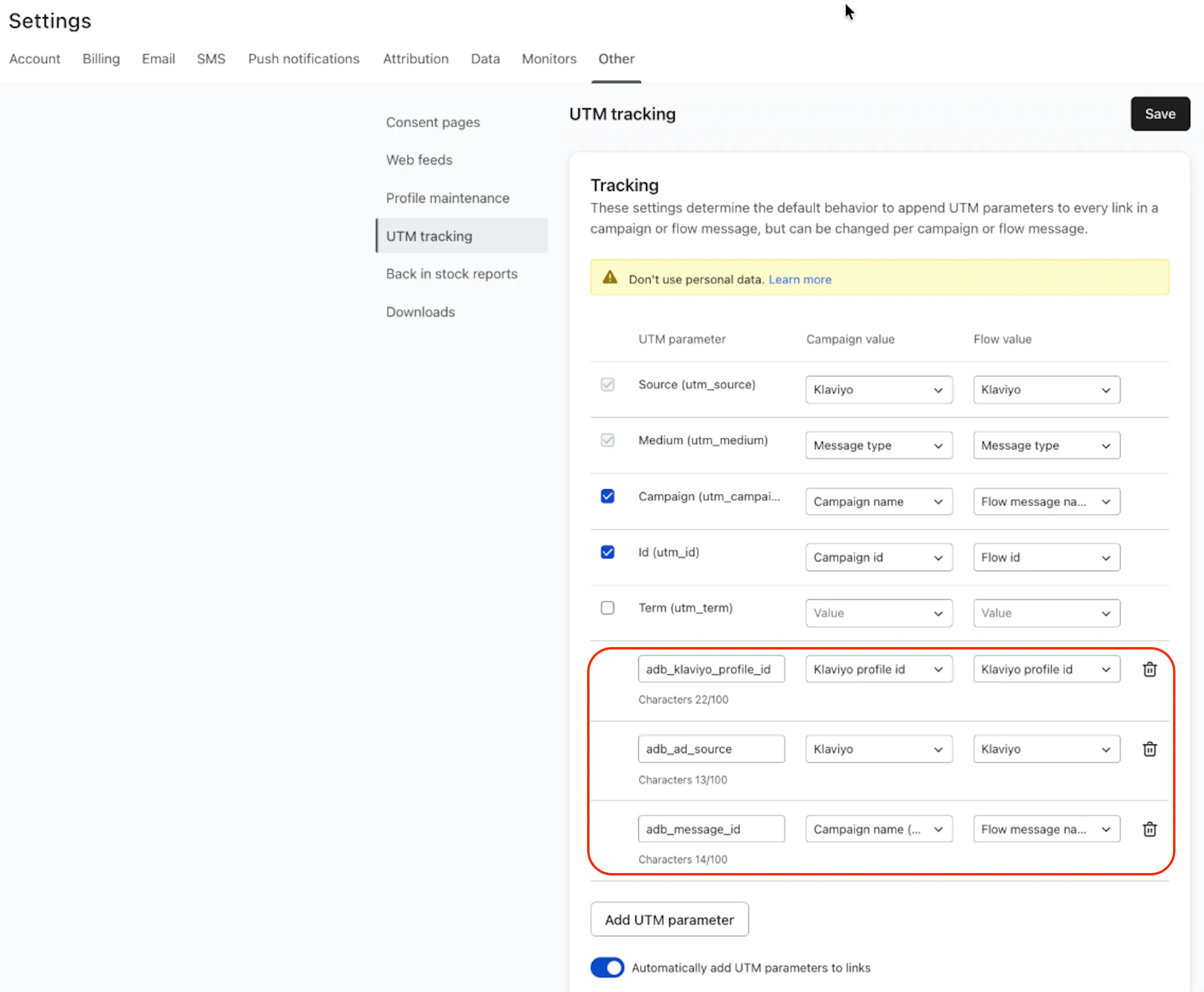
Add 3 Parameter by clicking the bottom button:
- adb_klaviyo_profile_id - Klaviyo profile id - Klaviyo profile id
- adb_ad_source - Klaviyo - Klaviyo
- adb_message_id - Campaign name (campaign id) - Flow message name (flow message id)
-
utm_campaign and utm_id can be deselected, only the parameters that are marked red are important.
-
Activate “Automatically add UTM parameters to links”
-
Lastly, save the settings.
Complete Connection
Section titled “Complete Connection”After you have added the UTM parameters, click on “I did that” in the “UTM Settings” step. It will load for a short bit and tell you on the bottom right if the Connection was successful and show up within your Connections.
You have to repeat those steps for every Klaviyo account, you wish to connect.