
Decify
How to connect Decify to adtribute.
Create Connection in adtribute
Section titled “Create Connection in adtribute”- Open the adtribute App.
- Go to Sources › Connections and click on “Create Connection”.
- Search for “Decify” and select it.
- Name the Connection as you like, e.g. the Account Name.
Now you need to get the Access Key ID, Secret Access Key and Project ID from Decify.
Retrieve API Keys and Project ID from Decify
Section titled “Retrieve API Keys and Project ID from Decify”-
Login to Decify.
-
Click on your Project Name at the top left and navigate to “Settings” > “Integrations”.
-
Click on “Connect” Icon for the adtribute Integration.
-
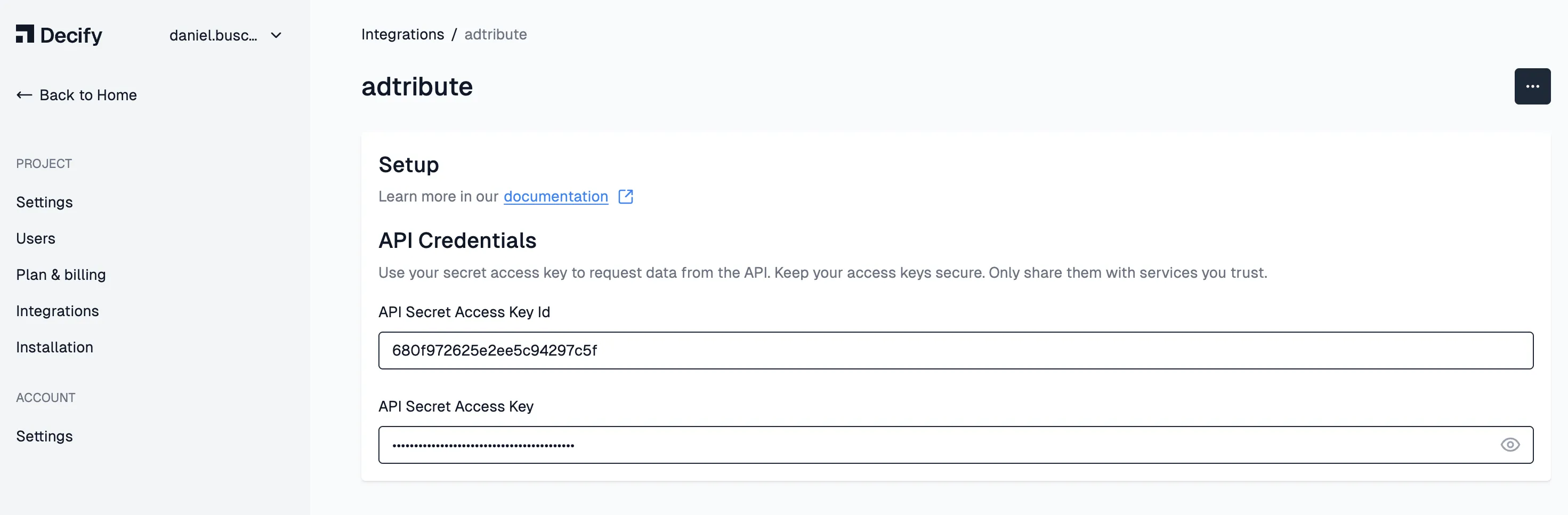
Click on “Reveal” to see your API Credentials
-
Copy and paste both API Keys in the according fields in the adtribute App. You need to show the Secret Key before copying it, so it is copied correctly (save the Secret for yourself as well, as you won’t be able to see it again).
-
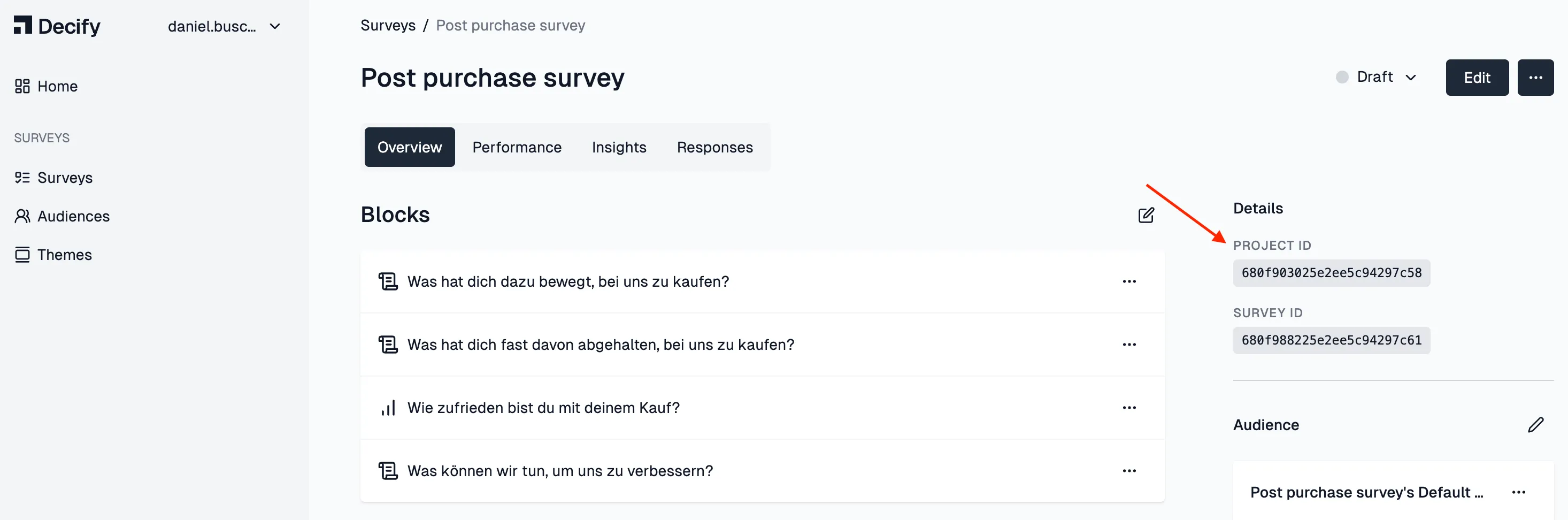
Lastly, you need the Project ID. You can find it within any of your surveys in the details on the right.
-
Copy and paste the Project ID into the according field in the adtribute app.
Complete Connection
Section titled “Complete Connection”After you have pasted the API Keys and Project ID, just click on “Next”. It will load for a short bit and tell you on the bottom right if the Connection was successful and show up within your Connections.