
Sellerboard
How to connect Sellerboard to adtribute.
Create Connection in adtribute
Section titled “Create Connection in adtribute”-
Open the adtribute App.
-
Go to Sources › Connections and click on “Create Connection”.
-
Search for “Sellerboard” and select it.
-
Name the Connection exactly
- “Orders by day” for the “Dashboard by day” export (German: “Dashboard (nach Tag)”)
- “Products by day” for the “Dashboard by product” export (German: “Dashboard (nach Produkt/Tag)”)
Now you need to get the CSV Links from Sellerboard.
Generate CSV Links
Section titled “Generate CSV Links”-
Login to Sellerboard.
-
Navigate to “Settings” > “Automation”.
-
Click “Add”.
-
Now a Popup to configure the Automation appears - select the following:
-
Report type:
- “Dashboard by day” (German: “Dashboard (nach Tag)”)
- “Dashboard by product” (German: “Dashboard (nach Produkt/Tag)”)
-
Periodicity: Daily for the last 30 days
-
Report format: CSV
-
“Detailed Information…”: Checkmark yes
-
Separator: Semicolon ”;”
-
Retrieving method: Link
-
-
Click “Save”.
-
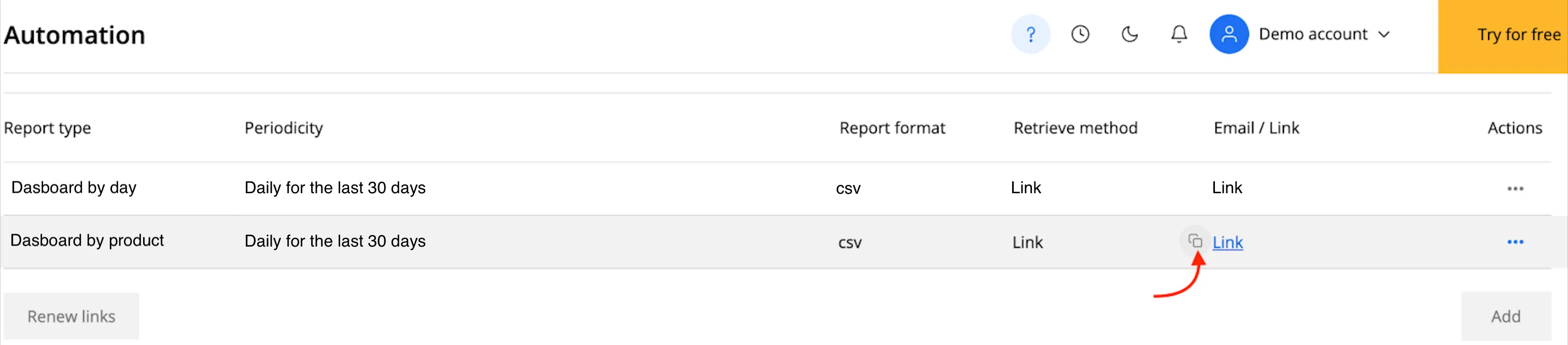
Now click on the copy button for the generated Link (see red arrow below).
Complete Connection
Section titled “Complete Connection”Go back to the adtribute App and paste the copied link into the “CSV URL” field. After you have done that just click on “Next”. It will load for a short bit and tell you on the bottom right if the Connection was successful and show up within your Connections.
Remember to do this twice for “Dashboard by product”, which is the “DashboardGoods” export and “Dashboard by day”, which is the “DashboardTotals” export.
Name the two connections as “Orders by day” and “Products by day”. Then it should look similar to this within adtribute:
Additional Information: Sellerboard only allows historic data for 30 days back and daily syncs.