AppLovin Ads
How to connect AppLovin Ads to adtribute.
Create Connection in adtribute
Section titled “Create Connection in adtribute”- Open the adtribute App.
- Go to Sources › Connections and click on “Create Connection”.
- Search for “AppLovin Ads” and select it.
- Name the Connection as you like, e.g. the Account Name.
Before going through Connection Process you have to confirm that you have implemented the UTM Parameters that are shown.
Implement UTM Parameters
Section titled “Implement UTM Parameters”Use the following UTM tracking template:
?adb_ad_source=applovin&adb_campaign_id={CAMPAIGN_ID}&adb_adgroup_id={CREATIVE_SET_ID}Where to implement:
- Log into your AppLovin Ads Dashboard.
- Go to Campaigns Settings.
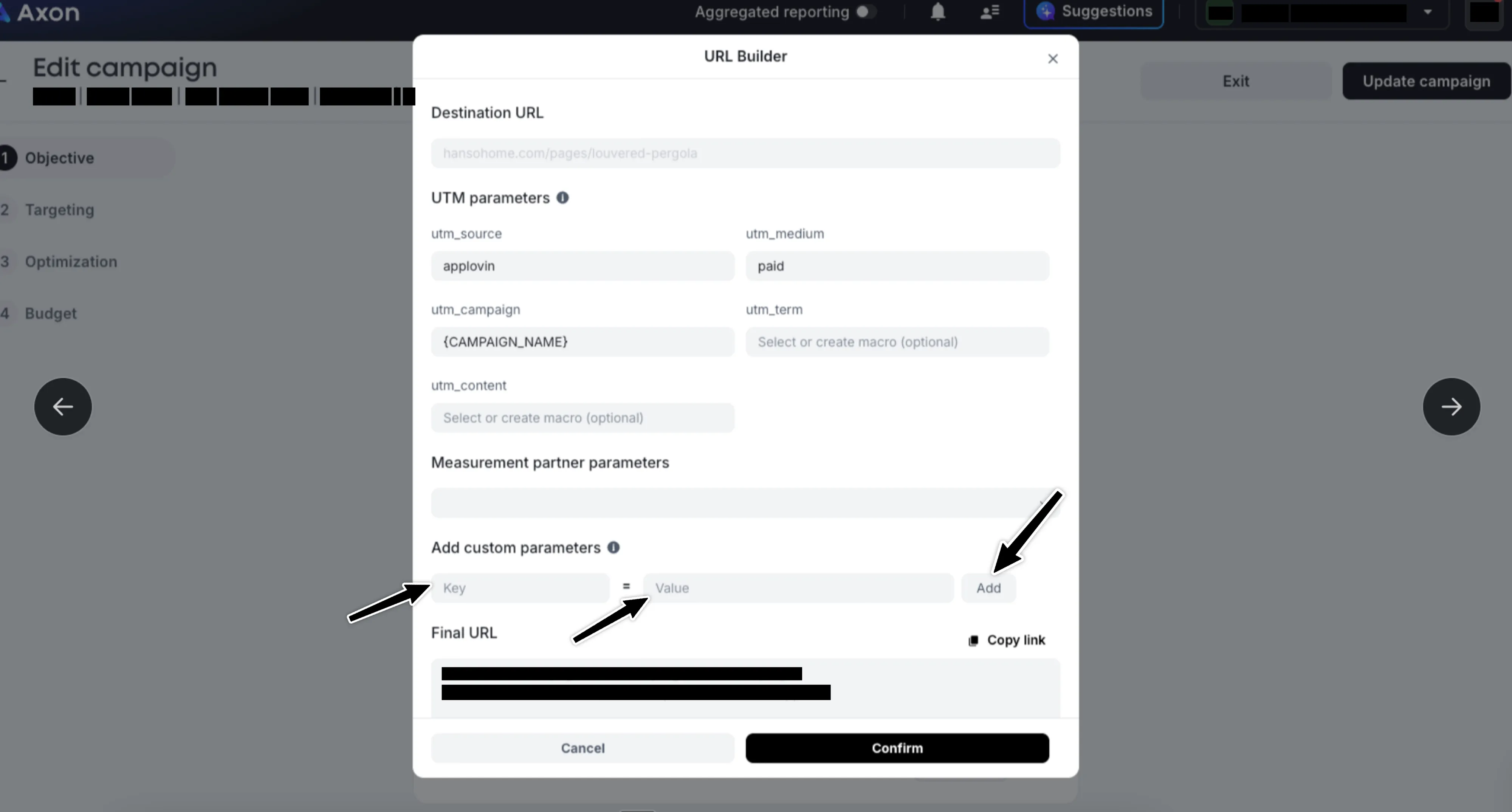
- Go to the Campaign URL Setup and click “Edit” next to the “Tracking parameters”.
- In the URL Builder add our parameters as custom parameters:
| Key | Value |
|---|---|
| adb_ad_source | applovin |
| adb_campaign_id | {CAMPAIGN_ID} |
| adb_adgroup_id | {CREATIVE_SET_ID} |
AppLovin Ads Connection Flow
Section titled “AppLovin Ads Connection Flow”To start the connection flow simply click “Connect”:
- On the Fivetran page you can click “Continue”.
- Enter your AppLovin Report Key (you can find these in your AppLovin dashboard under “Account > Keys”).
- Keep other settings as they are and click Save & Test.
After validation, Fivetran will confirm if the connection was successful.
Complete Connection
Section titled “Complete Connection”Once the connection is successful, you’ll be redirected back to the adtribute App.
You can now see your AppLovin Ads connection listed among your active connections.