
Google Ads Conversion Upload
Send adtribute data to Google Conversions.
This feature enables you to upload custom conversions from adtribute to your Google Ads account. By optimizing your campaigns for these adtribute conversions - which capture more complete and accurate conversion data - you’ll achieve better campaign performance compared to relying solely on Google’s standard conversion tracking.
Before you start
Section titled “Before you start”You need:
- A conversion action in Google Ads that imports conversions from clicks. adtribute uploads your conversions to it as click conversions through the Google Ads API. You enter its ID in Step 2.
- The customer ID of your Google Ads account.
- A Google account with access to that Google Ads account.
- The adtribute conversion you want to send.
Step 1: Create the Google Ads destination
Section titled “Step 1: Create the Google Ads destination”- Go to Activation and click Add Action.
- Click Create New Destination.
- Enter a Name and a Description.
- Under Type, select Google Ads.
- In Customer ID, enter the customer ID of your Google Ads account: 10 digits, without dashes.
- MCC account ID is optional, as its hint says: “Optional: Only required if you authenticate via MCC”. Fill it in only if the Google account you sign in with reaches the ad account through a manager account (MCC) and has no direct access to it. Then enter the manager account’s ID, also 10 digits.
- Next to Connect, click Connect your Google Ads account to adtribute. The button becomes active once Name, Description and a valid Customer ID are filled in.
- Google’s sign-in opens in a new tab, and the button shows “Please complete authentication flow”. Choose the Google account that has access to the Google Ads account and give adtribute access to Google Ads. When the tab shows “Authentication successful”, close it.
- Back in adtribute, the Connect row shows Google OAuth Connected. Click Next.
Step 2: Create the action
Section titled “Step 2: Create the action”After Next, the Add Action panel opens with your new destination. To add another action later, click Add Action on the Activation page and select your Google Ads destination.
-
Enter a Name and a Description.
-
Under Conversion, select the adtribute conversion you want to send to Google Ads.
-
In Action ID, enter the ID of your conversion action in Google Ads. adtribute sends the conversions to this conversion action.
-
Optional: under Action Value, choose the value adtribute sends with each conversion. The field becomes active once you have selected a conversion.
- Attribute sends a numeric attribute of the selected conversion, for example a revenue attribute. The list shows only the numeric attributes of that conversion. You create attributes under Definitions › Attributes.
- Constant sends the same number with every conversion.
If you leave Action Value empty, adtribute sends the conversions without a value.
-
Click Add Action.
What adtribute sends
Section titled “What adtribute sends”The upload runs every 30 minutes. Each run sends the conversions from the last 6 days that adtribute has not sent yet. So a new action also sends the conversions from the 6 days before you created it. Older conversions are never sent.
For each conversion, adtribute sends:
- the time of the conversion
- the value from Action Value, in your organization’s currency
- the Google click ID (gclid, gbraid or wbraid) of the customer’s last Google Ads click before the conversion, if adtribute tracks your website
- the customer’s email addresses and phone numbers, hashed with SHA-256
- consent for ad user data and ad personalization, set to granted
adtribute skips a conversion when it has no click ID, no email address and no phone number. With an Action Value, it also skips conversions with a value of 0 or less.
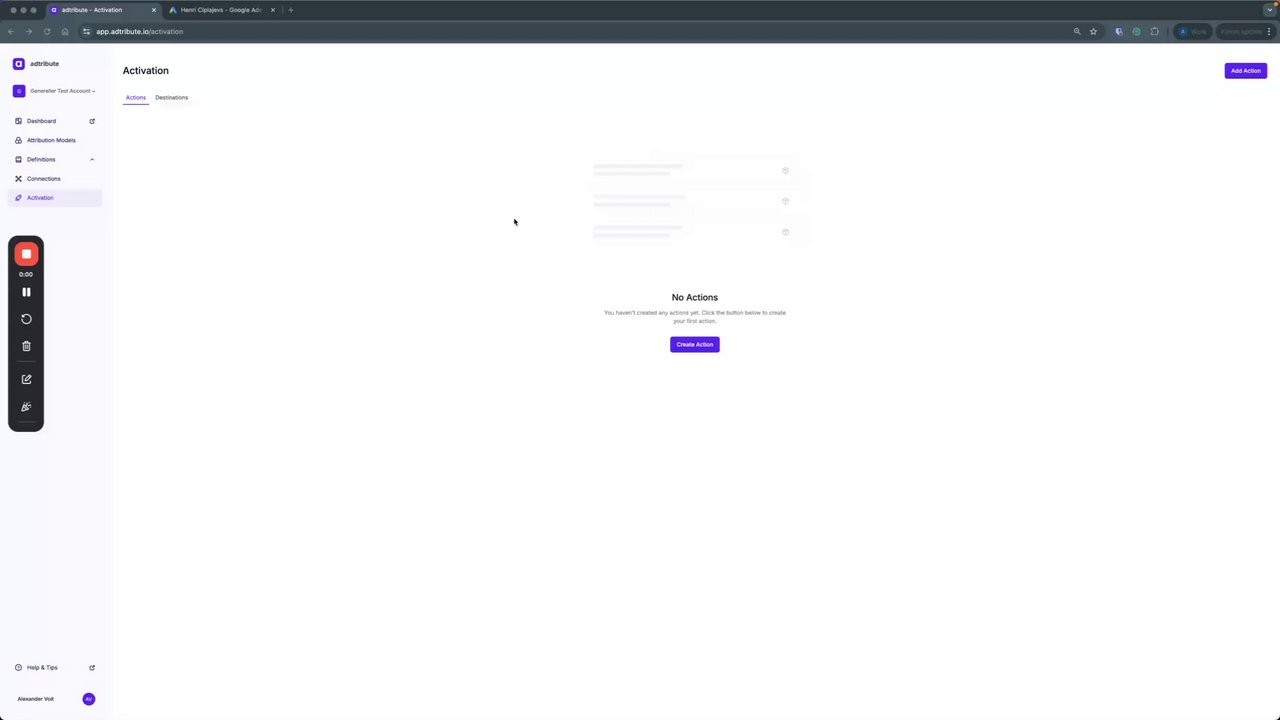
Video (older setup screens)
Section titled “Video (older setup screens)”This video from September 2025 shows an older version of the setup screens. Where the screens differ, follow the steps above.
 Google Ads Conversion Upload